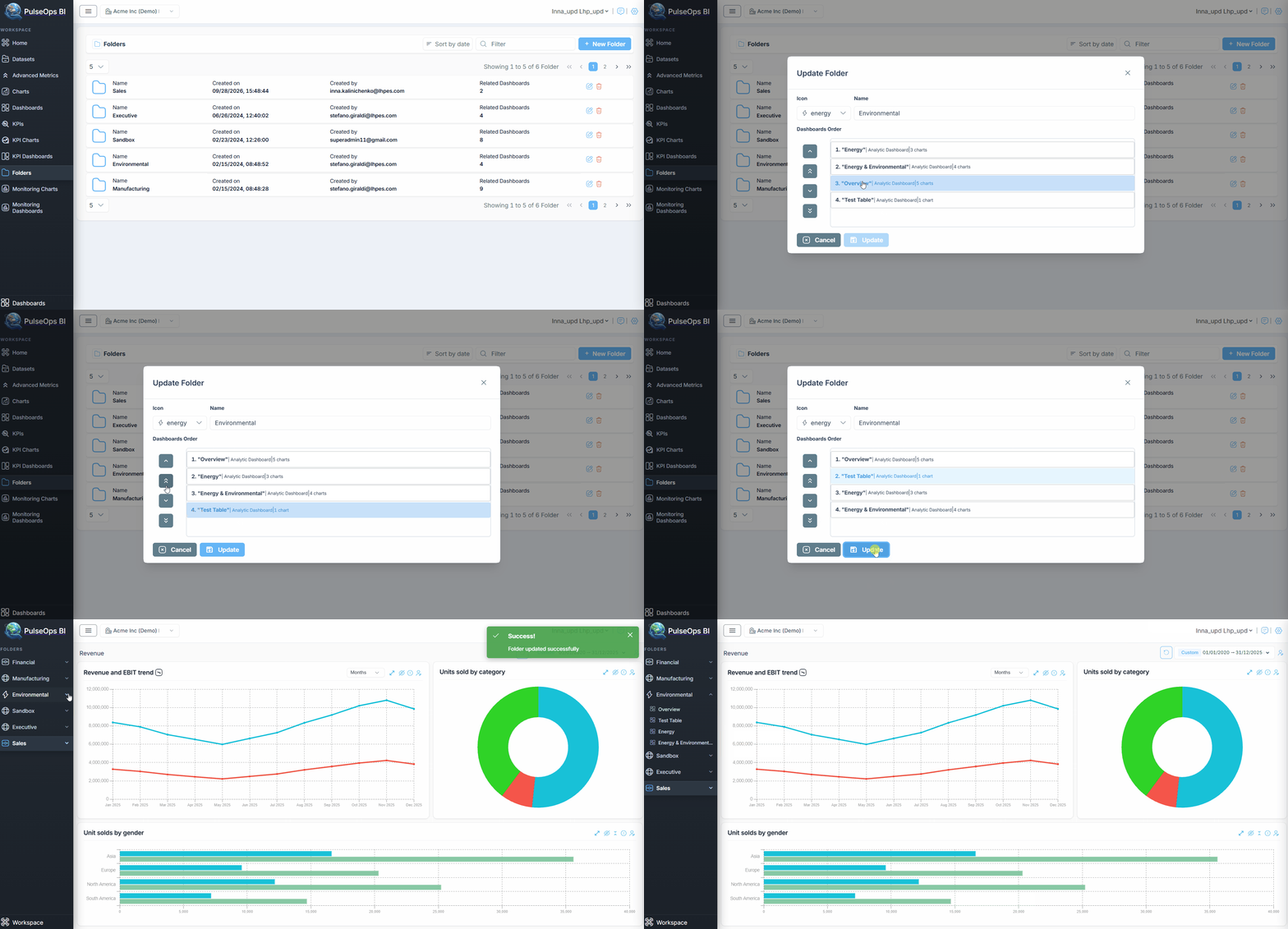
Folders
Folders are used to organize Dashboards into groups and make them accessible through the Dashboard Viewer.
Important: To make a Dashboard visible, the Dashboard must be associated with a Folder.
Otherwise, the Dashboard will have the status NONE and will not be visible in the Dashboard Viewer.
- Log in to PulseOps BI as a Admin or SuperAdmin
- From the Menu bar, select Folders
- Click the + New Folder button
- The create New Folder pop-up appears
- In the Icon dropdown, select an icon
- In the Name field, enter the name of the Folder
- Click the Create button
- A success message appears
- The created Folder is displayed under Folders > Folders
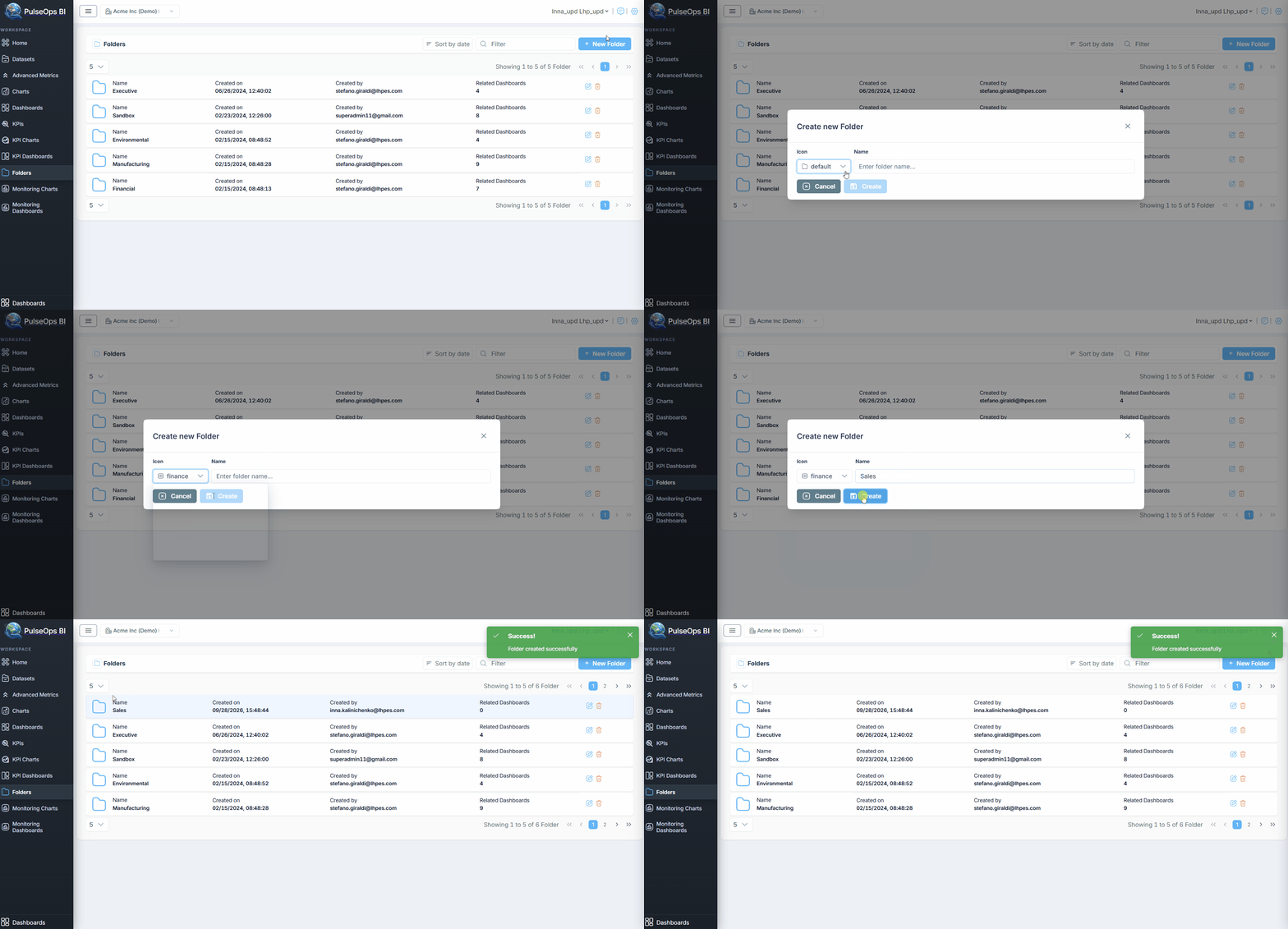
You can associate a Folder with a Dashboard in two ways:
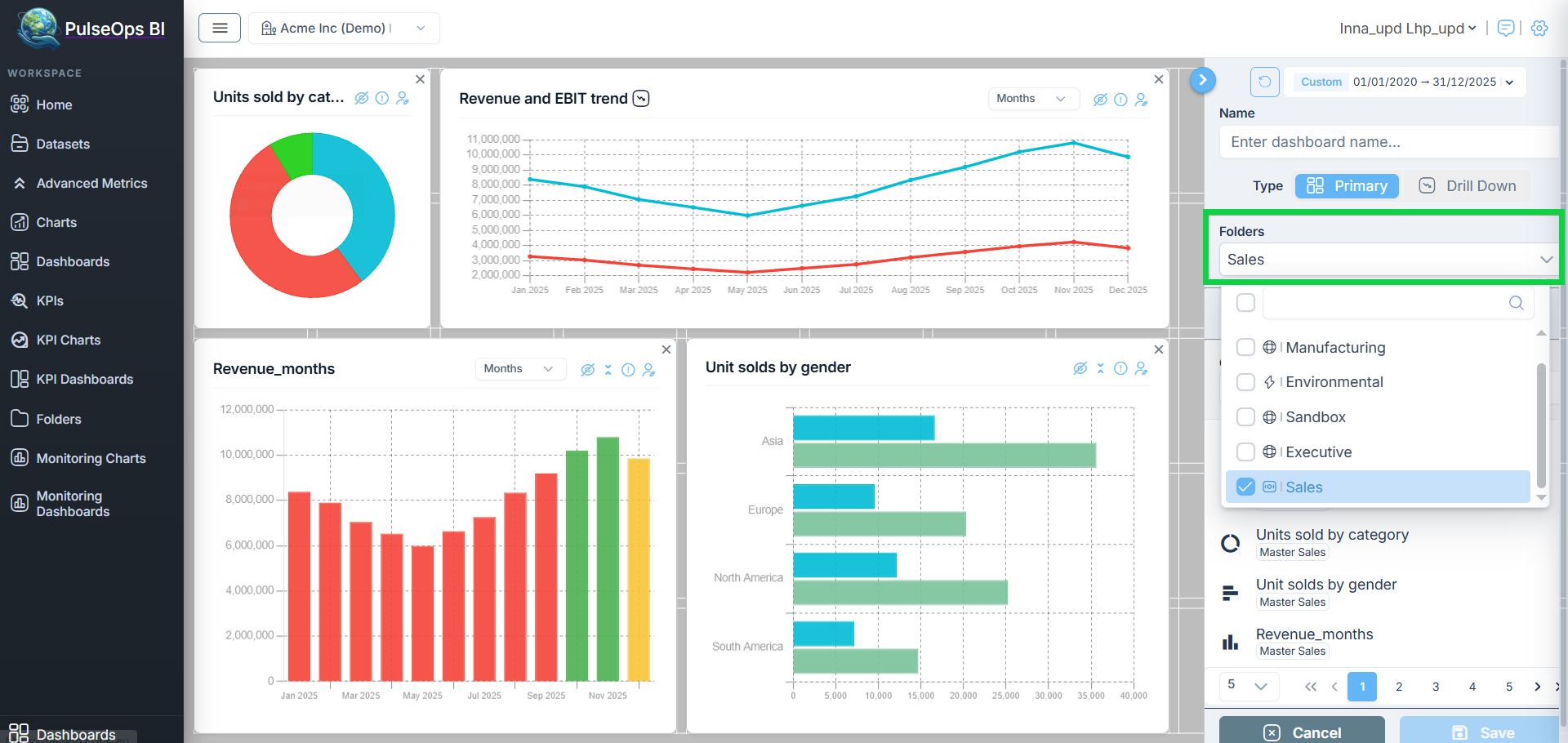
a) During Dashboard creation
On the Dashboard creation page, select the required Folder from the Folder dropdown
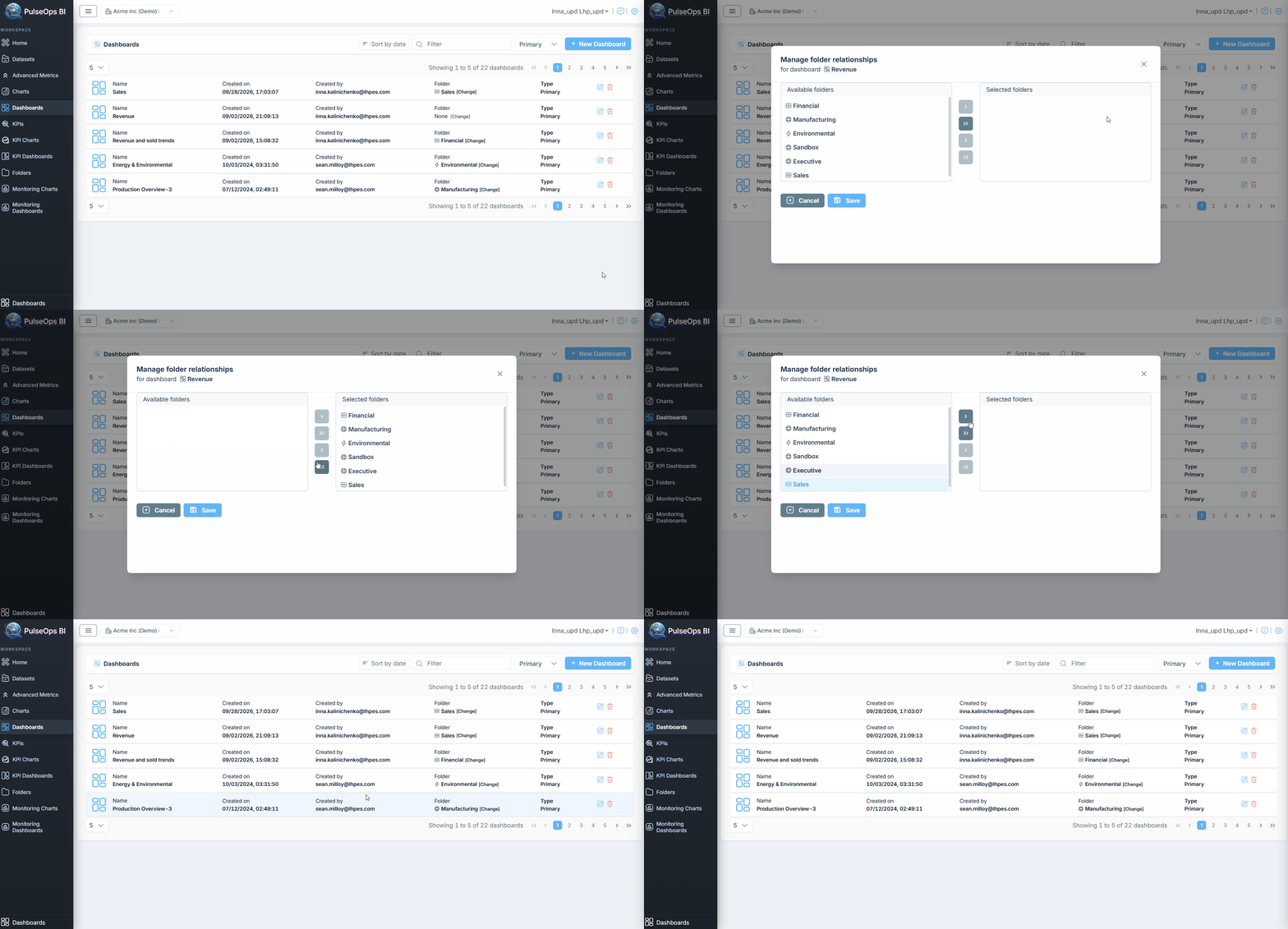
b) After the Dashboard has been created
Go to Dashboards > Dashboards Library and click the [Change] button.
The Manage folder relationships pop-up window appears. Select the Folders you want to associate with the Dashboard
A Dashboard can be associated with multiple Folders, including all available Folders.
- Click the Save button to save your changes
The associated Folders are displayed in the Folder column
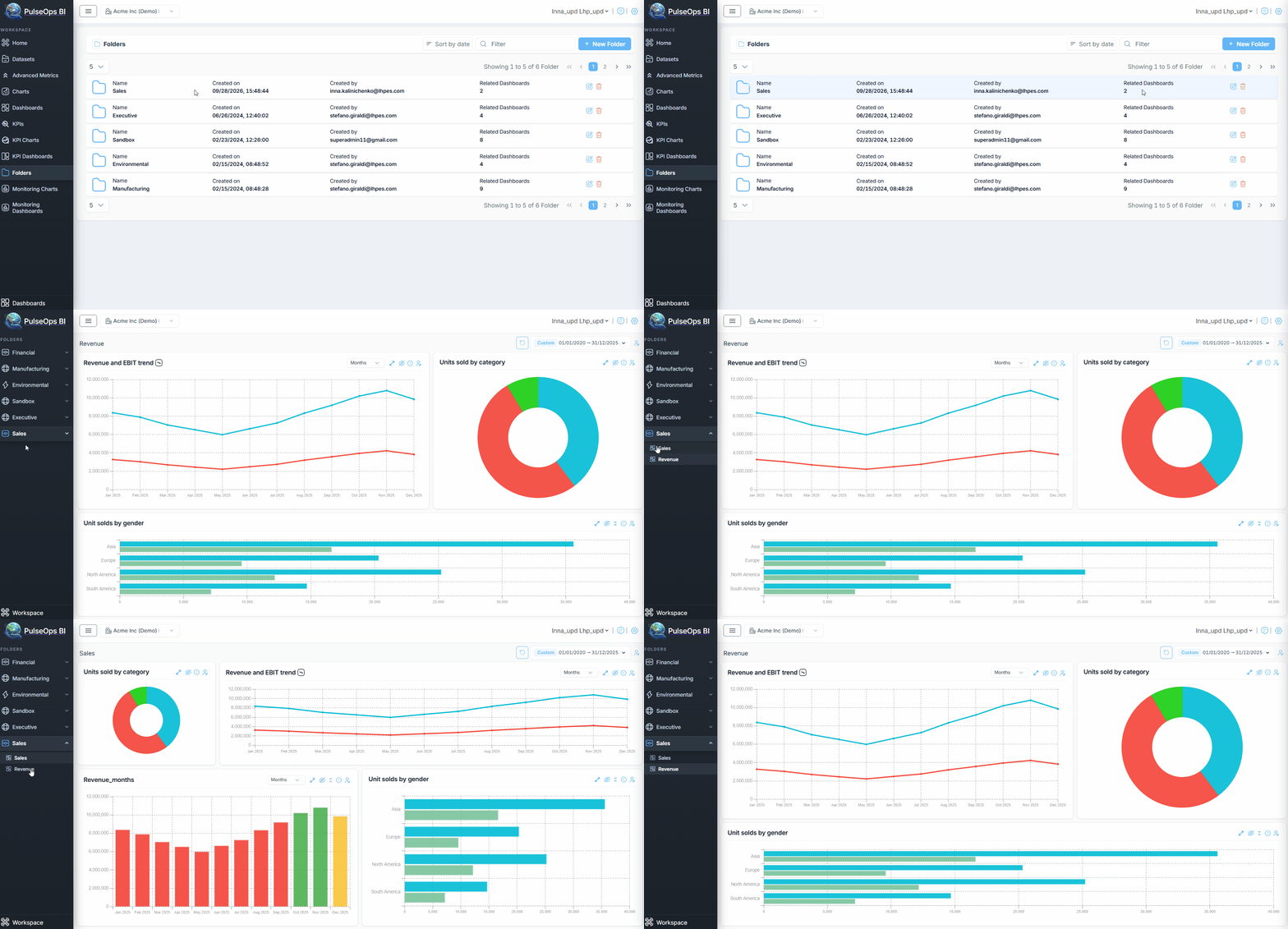
Click Main Menu at the bottom of the Menu sidebar The page with all created Folders appears
Select the Folder with which you associated the Dashboard. All Dashboards associated with this Folder are displayed.
Change Dashboard Order
PulseOps BI allows you to change the order of Dashboards within a Folder
From the menu, select Folders
- Click on the Edit button

Use the side arrows to move the Dashboards associated with the Folder into the desired order. Alternatively, click and drag a Dashboard up or down to move it to the desired position
Click the Update button
The Dashboard order in the Folder is updated successfully