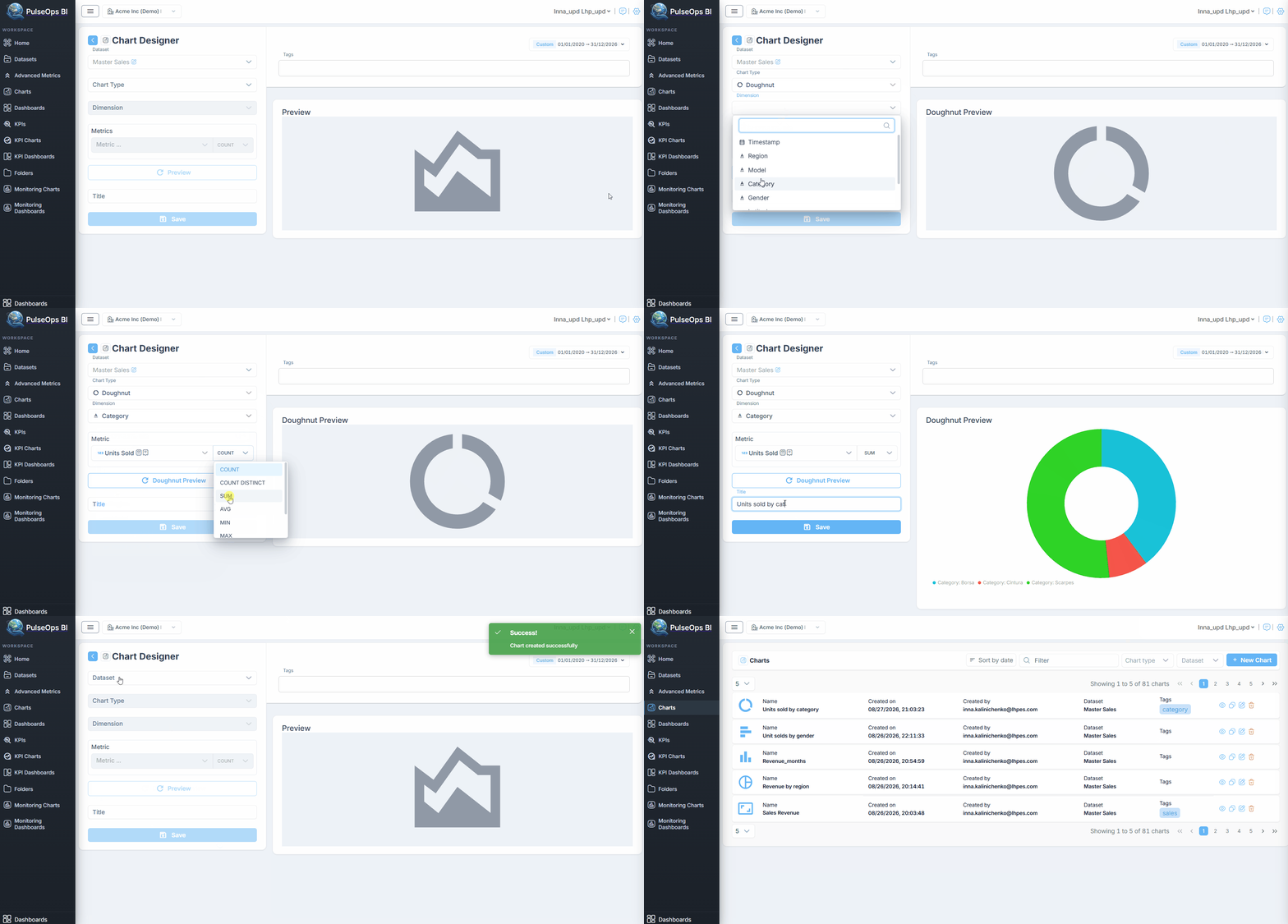
Doughnut chart
Before you begin, verify that the dataset is created and uploaded in Dataset Menu bar.
- Log in to PulseOps BI as Admin/SuperAdmin
- From the Menu bar select Charts
- Click on + New Chart button
- In Datasets dropdown, select a dataset
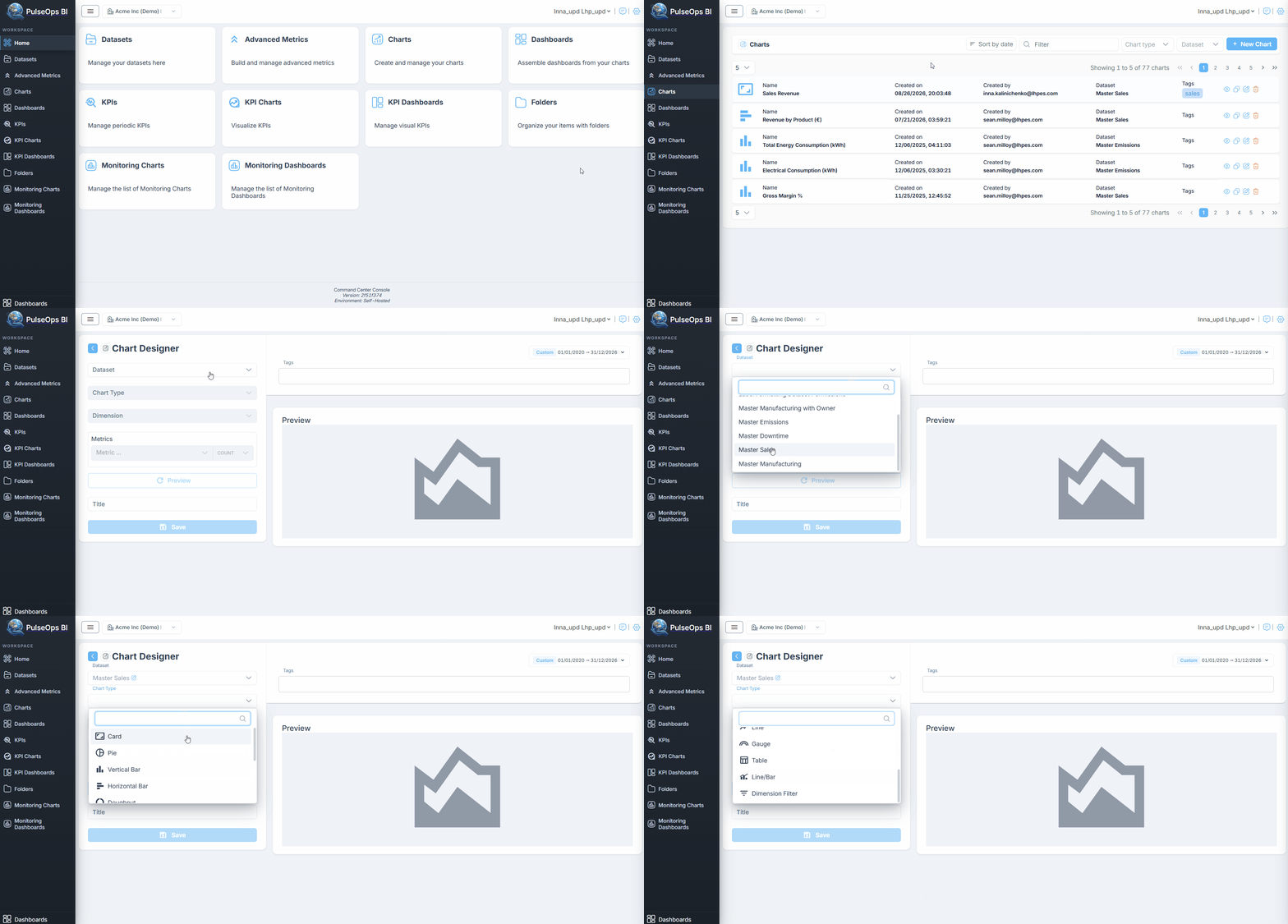
- In Chart type dropdown, choose Doughnut
- In Dimension field, choose dimension
- In Metric field, select any metric
- Choose an aggregation for chosen metric
- Click Doughnut Preview button
- In Title field, insert title of Doughnut Chart
- In Tags field, enter any tag and press "Enter" button
- Click Save button
- Created Dougnut Chart is in Charts > Charts Library