KPI creation
PulseOps BI allows you to track KPIs that are essential for monitoring performance and ensuring that targets are met. This functionality helps you make data-driven decisions and stay aligned with your strategic goals.
Create KPI
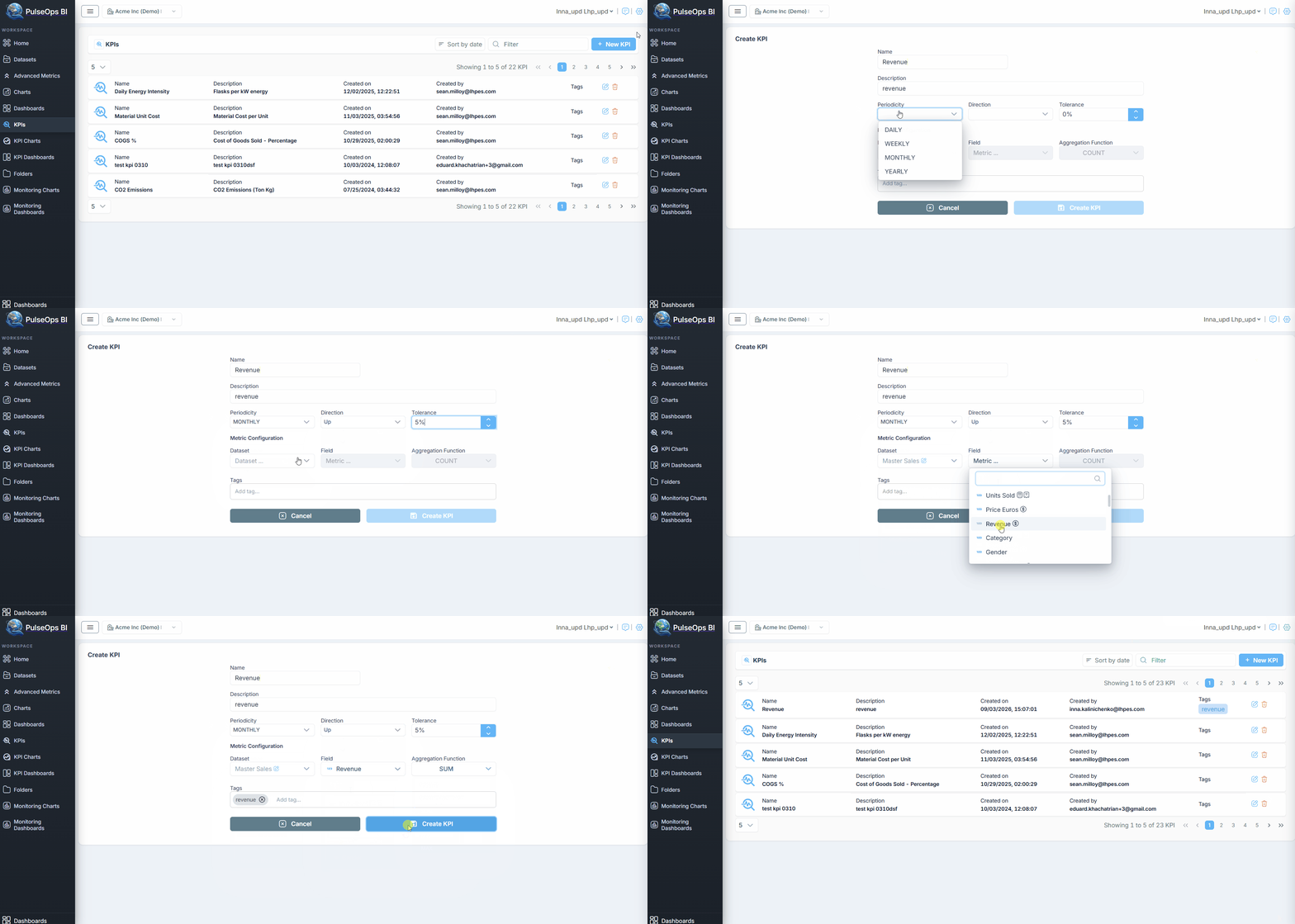
Create a PulseOps BI KPI following the steps below:
- Log in to PulseOps BI as Admin/SuperAdmin
- From the Menu bar select KPIs
- Click on + New KPI button
- In Name field, enter the name of the KPI
- In Description field, enter the the description of the KPI
- In Periodicity field, enter the frequency with which you want to track the KPI
- In Direction field, enter the direction with which you want to track the KPI
- In Tolerance field, enter the acceptable percentage deviation from the target value
- In Tag field, enter a tag and press "Enter"
Metric configuration
- In Dataset field, select the dataset, from those uploaded to PulseOps BI, for which you want to create the KPI
- In Field field, select the metric of interest
- In Aggregation function field, select the aggregation for the chosen metric
Save the KPI
- Click the Create KPI button
- The KPI is successfully created and is displayed in the KPI list