Monitoring Line chart
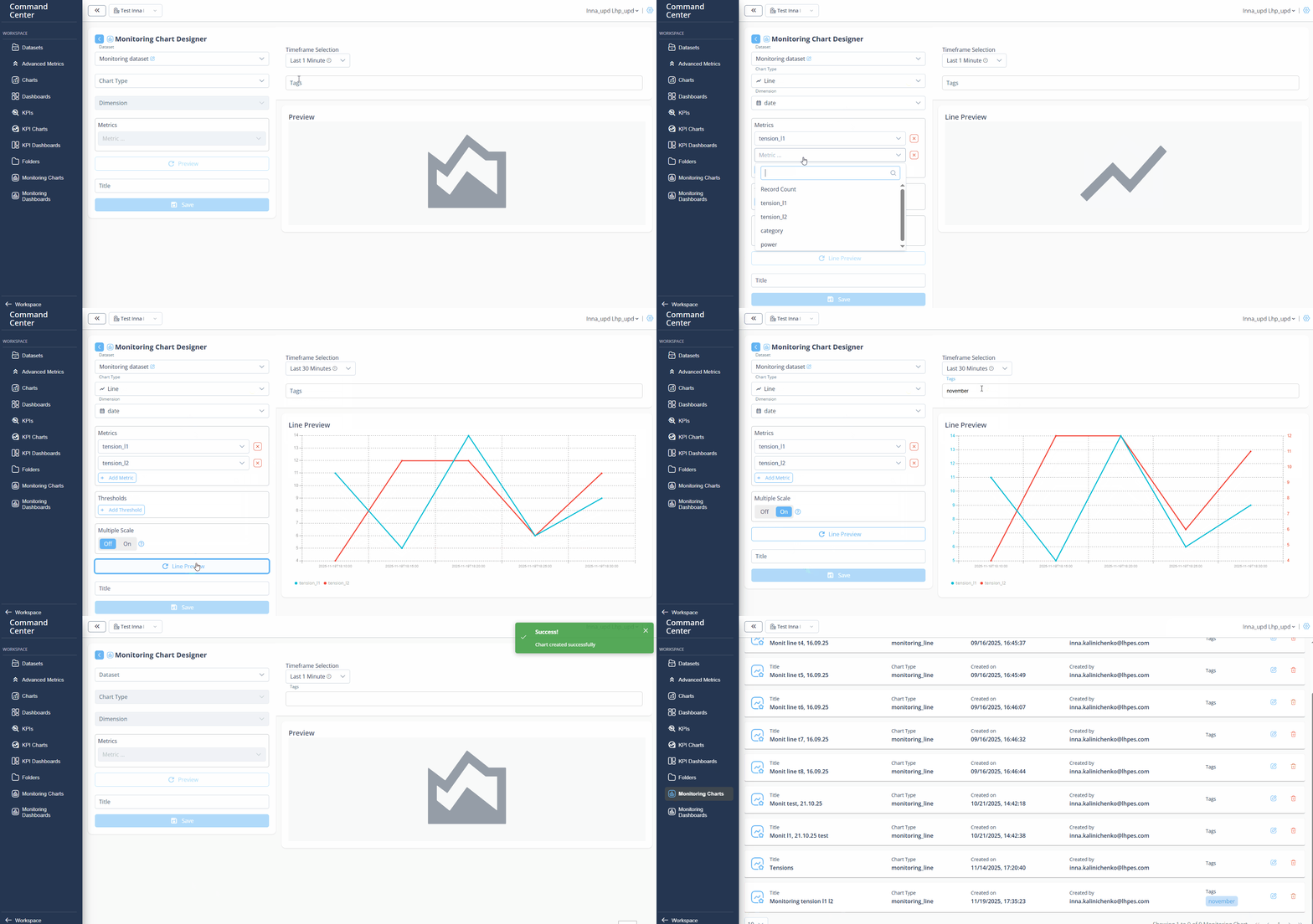
Before you begin, verify that the dataset is created and uploaded in Dataset Menu bar.
- Log in PulseOps BI as Admin/SuperAdmin
- From the Menu bar select Monitoring Charts
- Click on + New Monitoring Chart button
- In Datasets dropdown, select a dataset
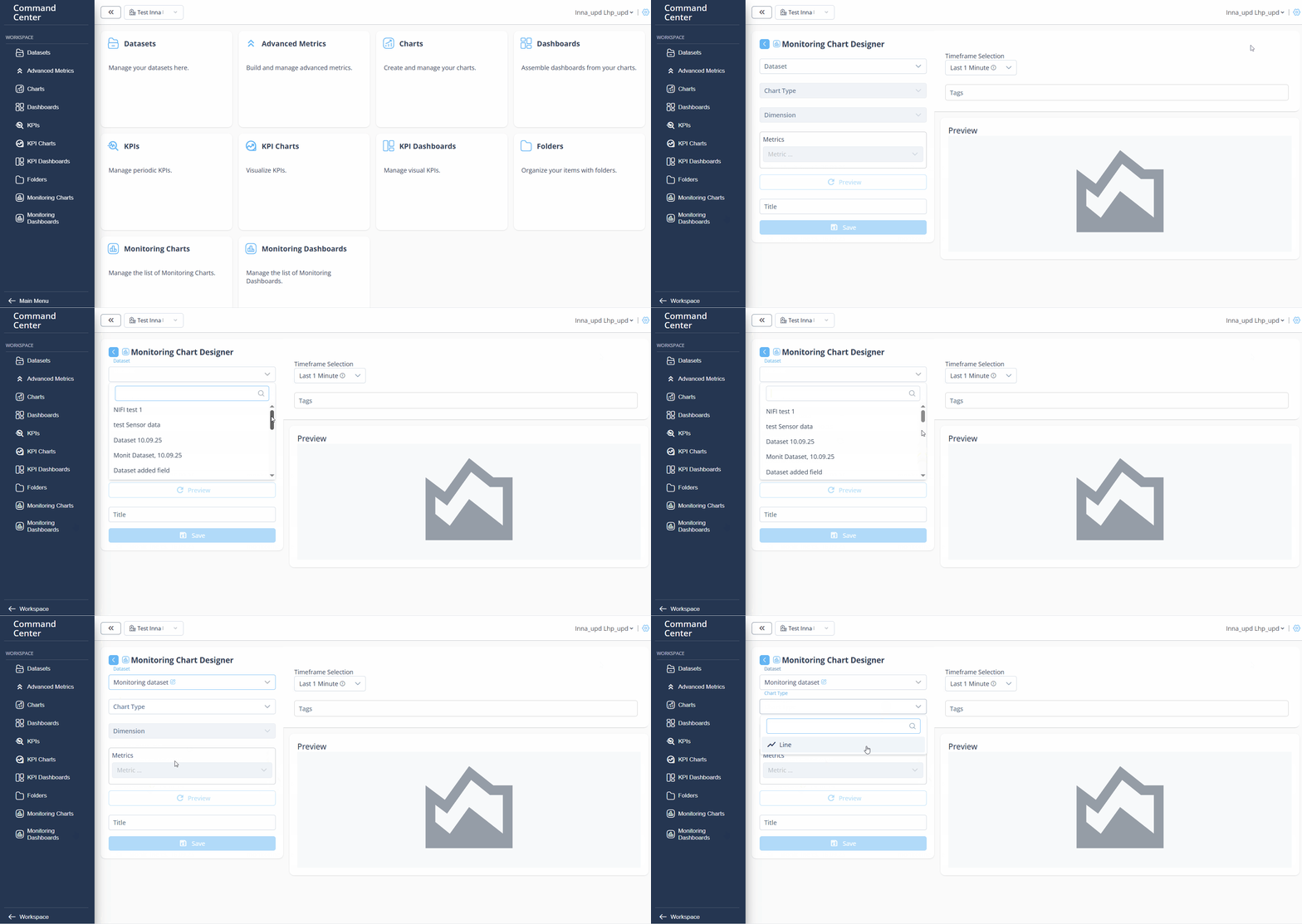
- In Chart type dropdown, choose Line
- In Dimension field, choose dimension
- In Metrics field, select any metric for Line
- Click Add Metric to add an additional metric
- Click + Add Threshold to add a Threshold
- In Label field, enter any label for Threshold (e.g. Target)
- In Value field, enter the thresholds value
- In Color dropdown, select color for Threshold
- Click Active to activate Conditional Formatting
- In Behaviour dropdown select "Green if above" or "Green if below"
- Click + Add Threshold to add an additional Threshold
- In Title field, insert title of Monitoring Line Chart
- Select Timeframe Selection by Last 1, 5, 15, 30 minutes, 1 hour, 2 hours.
- In Tags field, enter any tag and press "Enter" button
- Click Line Preview button
- Click Save button
- Created Monitoring Line Chart is in Monitoring Charts > Monitoring Charts Library