Create Monitoring Chart
How to create different types of Monitoring Charts for your dashboard, employing different features to effectively communicate different aspects of the data.
Monitoring Chart library
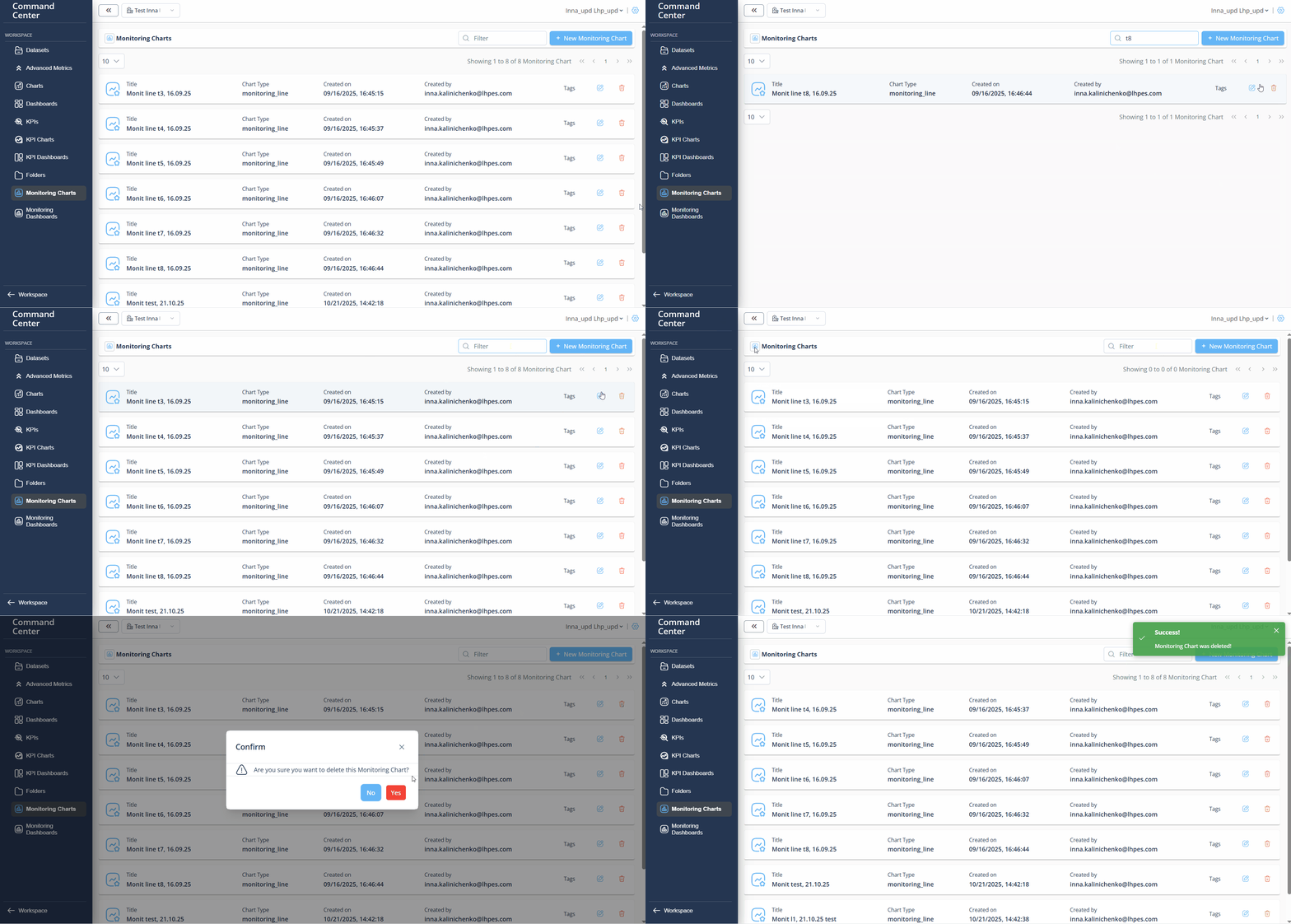
All the charts that have been created are conveniently housed within the Monitoting chart library. Within this library, users have the flexibility to modify existing charts, delete ones they no longer need, or even generate entirely new ones. Additionally, to streamline the search process, the library allows users to apply filters enhancing accessibility and facilitating efficient navigation.
Monitoring Chart customization
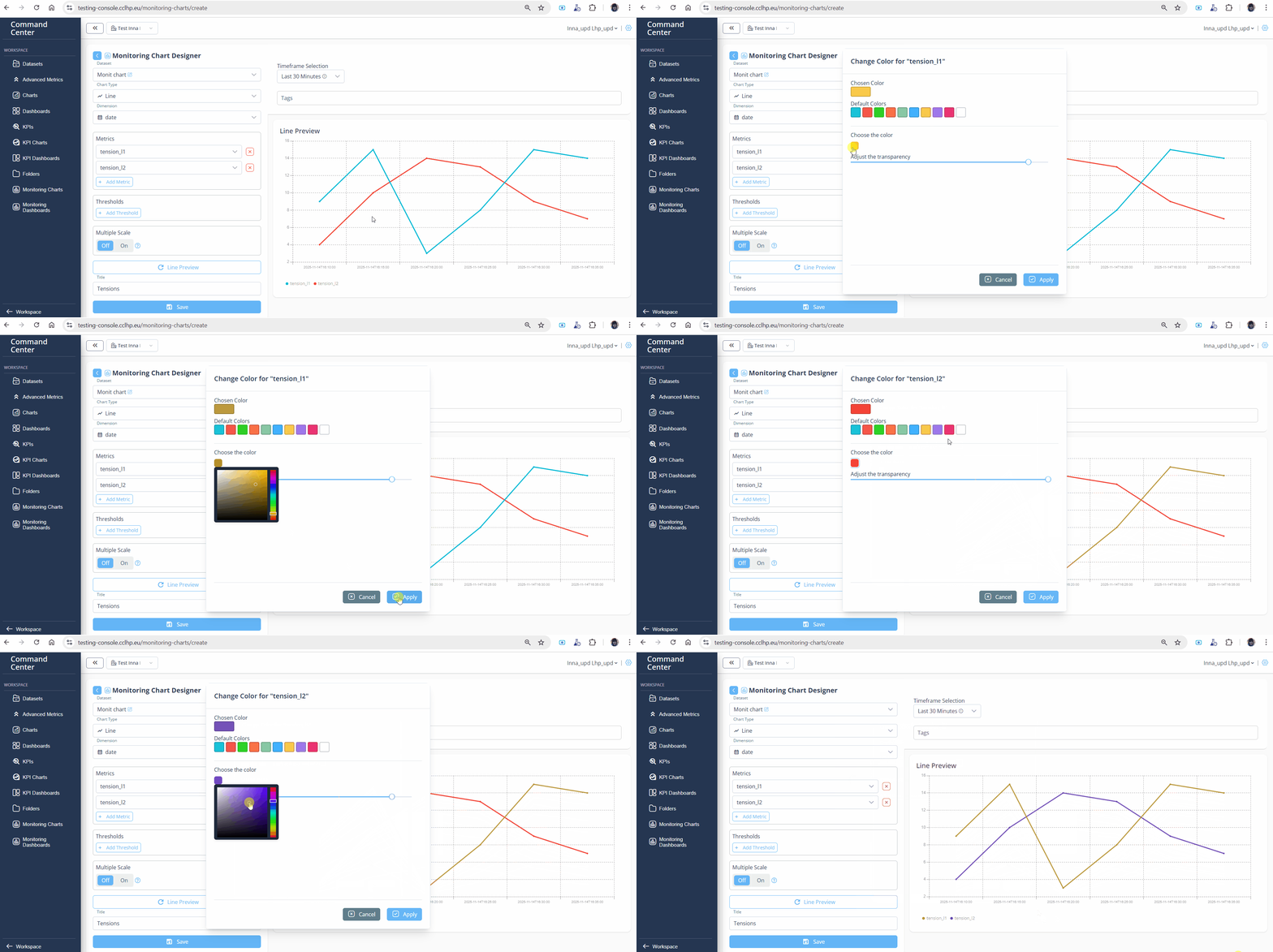
The PulseOps BI allows you to constume the charts by choosing the prefered colors. A color customized dashboard enhance your experience, visual clarity, and communication of information. Colors can be tailored to align with a brand's identity, ensuring consistency across different platforms and reinforcing brand recognition. Moreover by assigning distinct colors to various data categories, trends, or levels of importance, you can easily differentiate and comprehend information quickly.
In the PulseOps BI, customizing your charts is incredibly easy, just follow these simple steps.
- During the creation of any type of chart, click on "Preview" button.
- Click inside the preview on the colored dot and choose the desired color.