User permissions
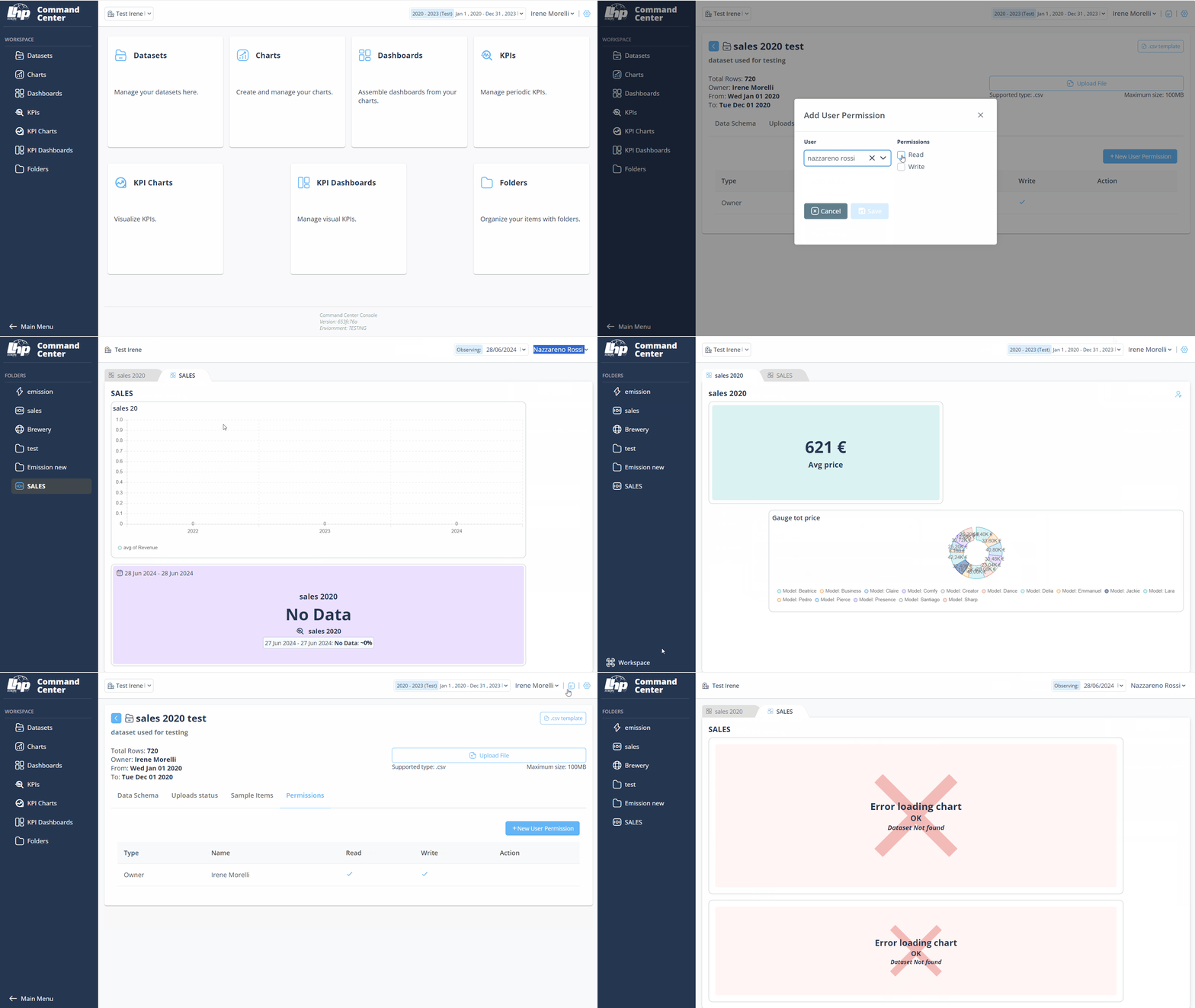
The Command Center allows the superAdmin to grant limited access to Viewers to specific datasets and related dashboards. Indeed, the Viewer will only be able to view dashboards containing charts related to the datasets they have access to.
- Log in to the PulseOps BI as Admin/SuperAdmin
- From the Menu bar, select Datasets and click the Edit button
 for the required dataset
 - Go to the Permission page
- Click on the + New User Permission
- Add User Permission page opens
- From the User dropdown select the Viewer to whom you want to grant permission.
- In the Permission field choose the level of access to give to the viewer
- Click Save to save.
- New dataset permission is added with success
Group permissions
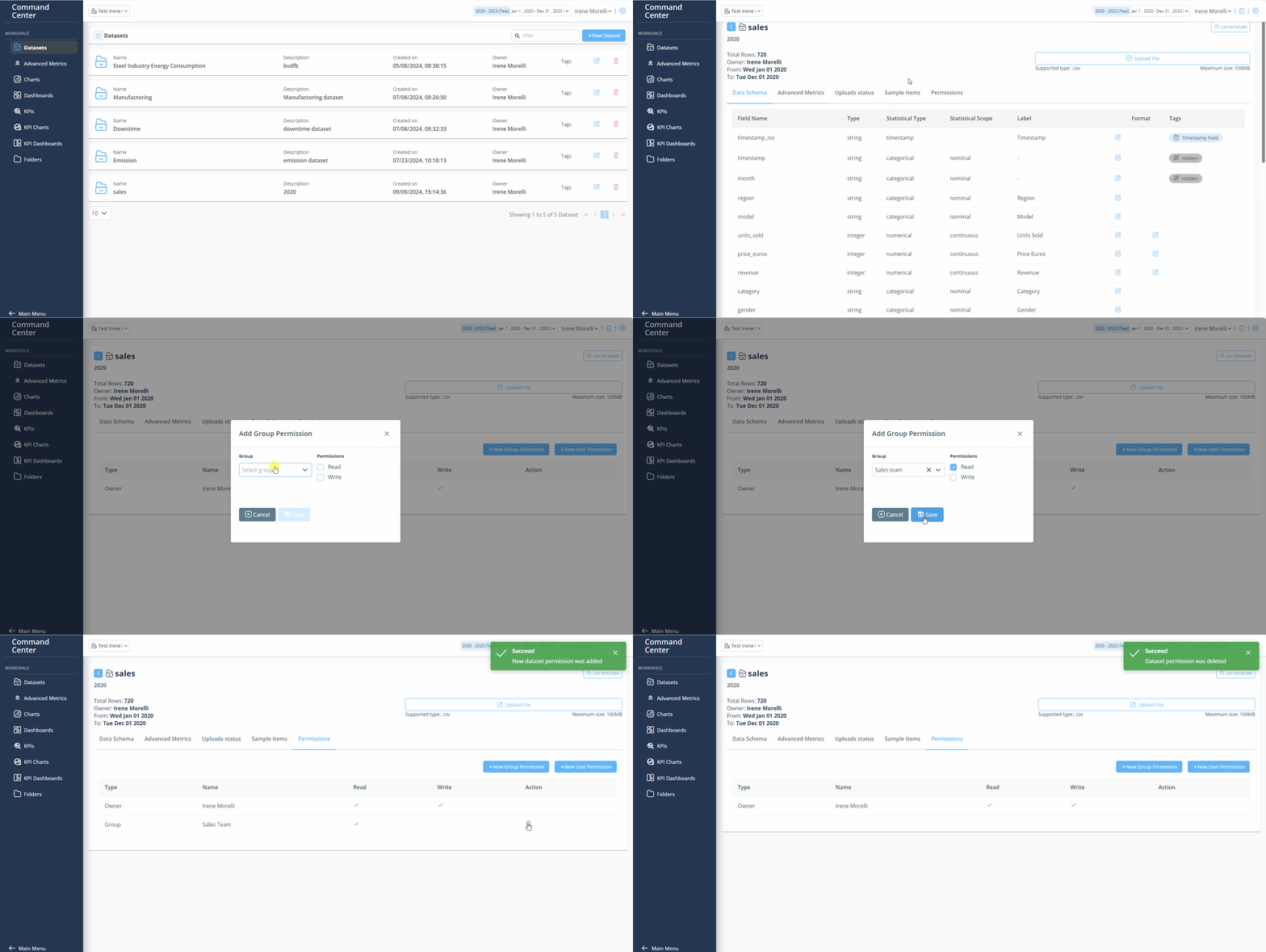
The Command Center allows the superAdmin to grant limited access to Groups, giving permission to view or edit.
- Log in to the PulseOps BI as Admin/SuperAdmin.
- From the menu bar, select Dataset.
- Click the Edit buttonnext to the relevant dataset.
- Go to the Permission page.
- Click + New Group Permission.
- The Add Group Permission page will open.
- From the Group dropdown menu, select the Viewer to whom you want to grant permission.
- In the Permission field, choose the level of access to grant the group.
- Click Save to save.
- A new dataset permission has been successfully added.
Removing Permission
- Log in to the PulseOps BI as Admin/SuperAdmin.
- From the User Settings menu bar, select Dataset.
- Go to the Permission page.
- Click the Delete button.
- A confirmation message will appear; click YES.
- The user has been successfully removed.