Gauge chart
Before you begin, verify that the dataset is created and uploaded in Dataset Menu bar.
- Log in to PulseOps BI as Admin/SuperAdmin
- From the Menu bar select Charts
- Click on + New Chart button
- In Datasets dropdown, select a dataset
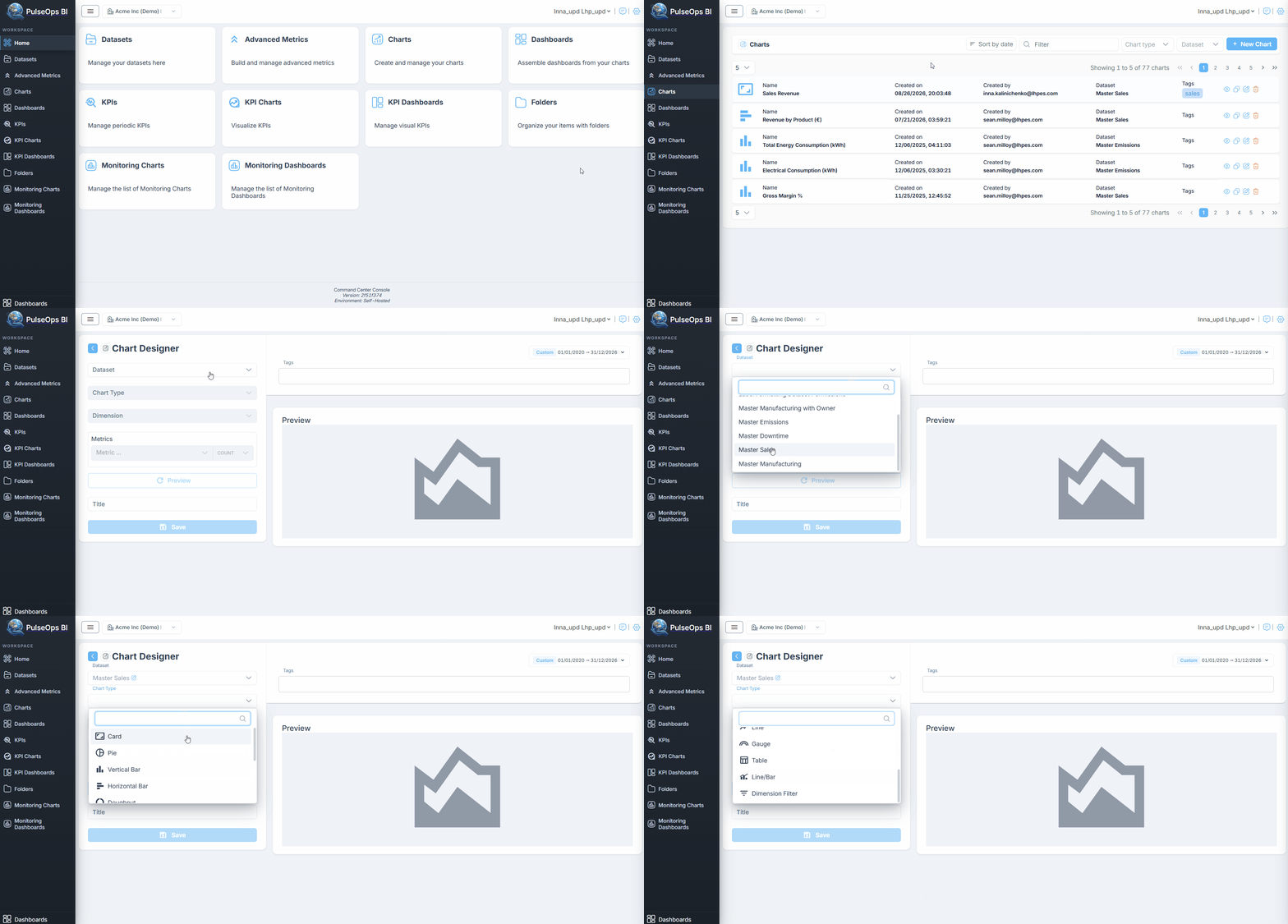
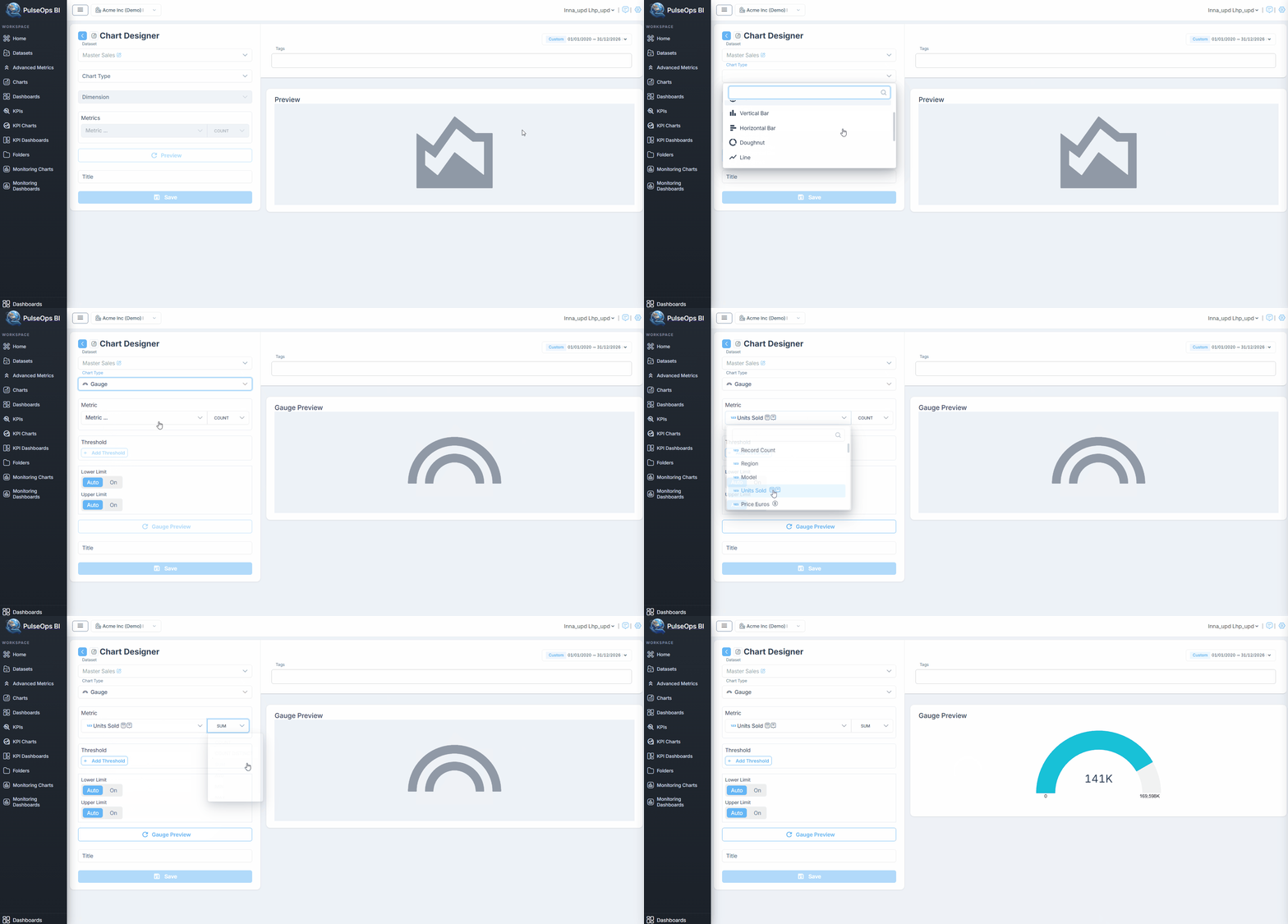
- In Chart type dropdown, choose Gauge
- In Metric field, select any metric
- Choose an aggregation for chosen metric
- On Percentage field, click Active toggle to view value in percentages
Note: In this case options of Lower Limit and Upper Limit are disabled Clicking the Gauge Preview button, will display the Gauge in percentages.
- On Target field, click On toggle to enter value in dropdown
- Click Guage Preview button
- In Title field, insert the title of Gauge
- In Tags field, enter any tag and press "Enter" button
- Click Save button
- Created Gauge is in Charts > Charts Library
Additional features
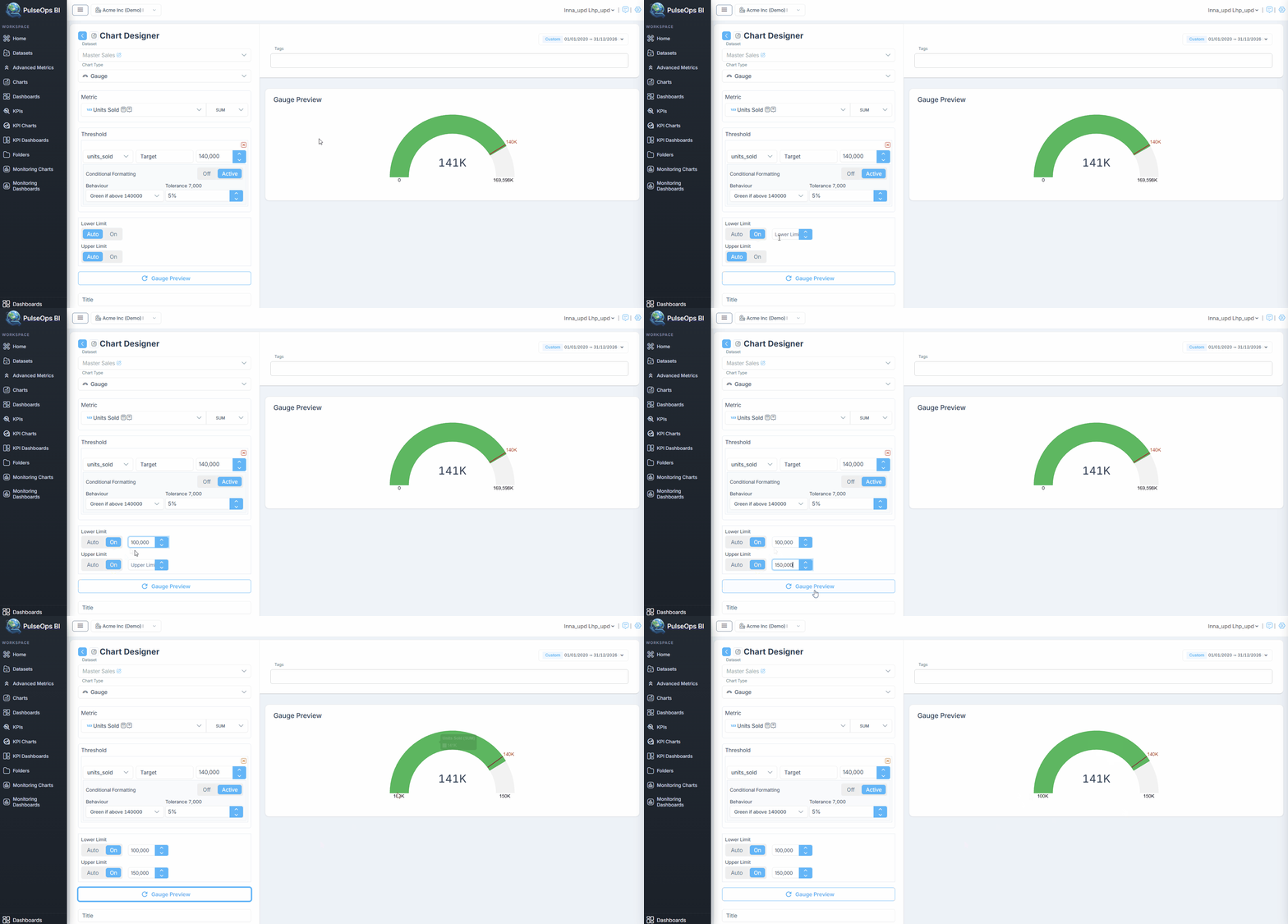
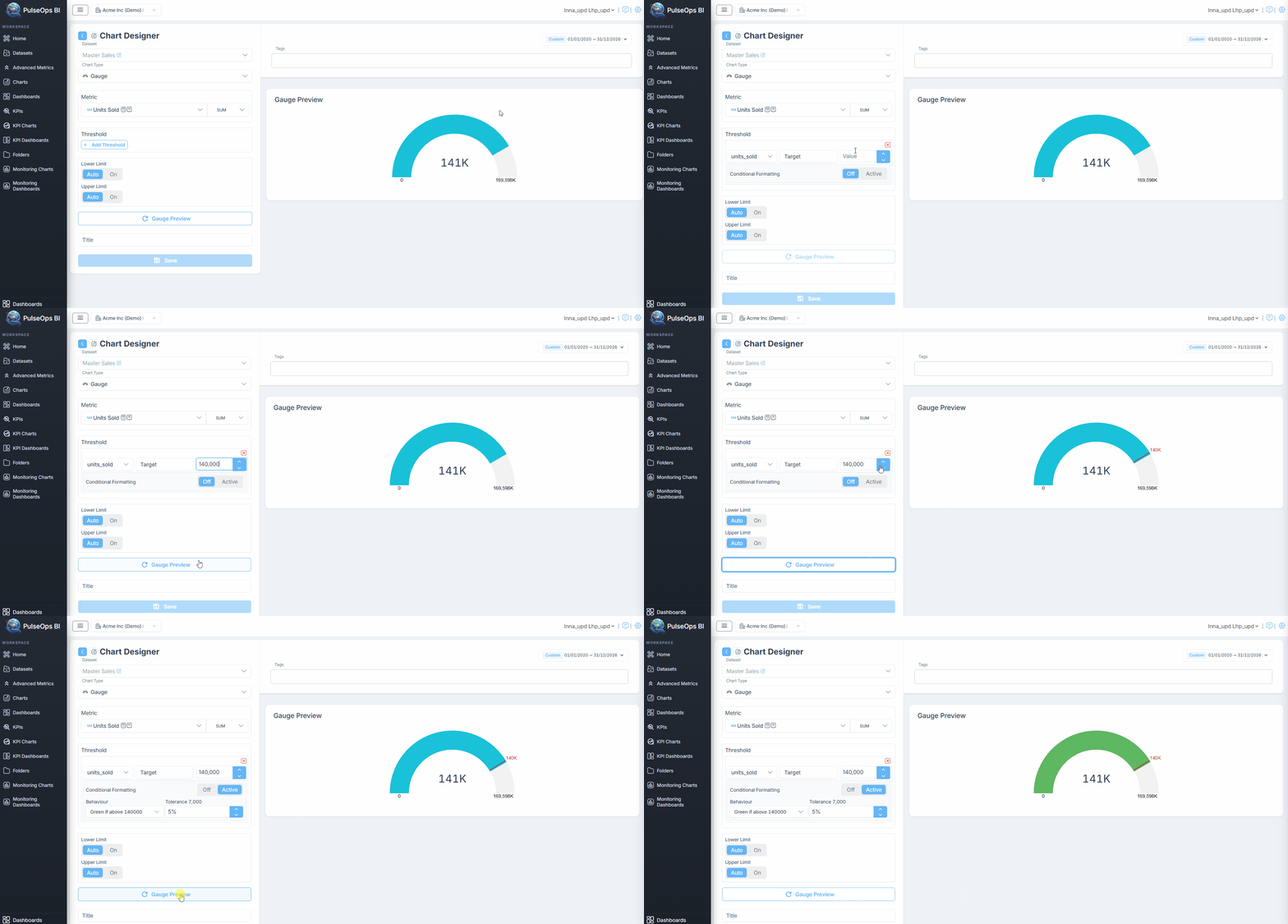
- Conditional Formatting applies visual styles to metric values based on defined threshold conditions.
- Click + Add Threshold to add Threshold
- Click Conditional Formatting to activate conditional formatting
- Lower/Upper Limit If the Percentage option is OFF, it's possible to select any value frame through the Lower Limit and Upper Limit options:
- To set Lower Limit, click On toggle and put value in dropdown
- To set Upper Limit, click On toggle and enter value in dropdown
- Clicking Guage Preview button