Horizontal bar chart
Before you begin, verify that the dataset is created and uploaded in Dataset Menu bar.
- Log in to PulseOps BI as Admin/SuperAdmin
- From the Menu bar select Charts
- Click on + New Chart button
- In Datasets dropdown, select a dataset
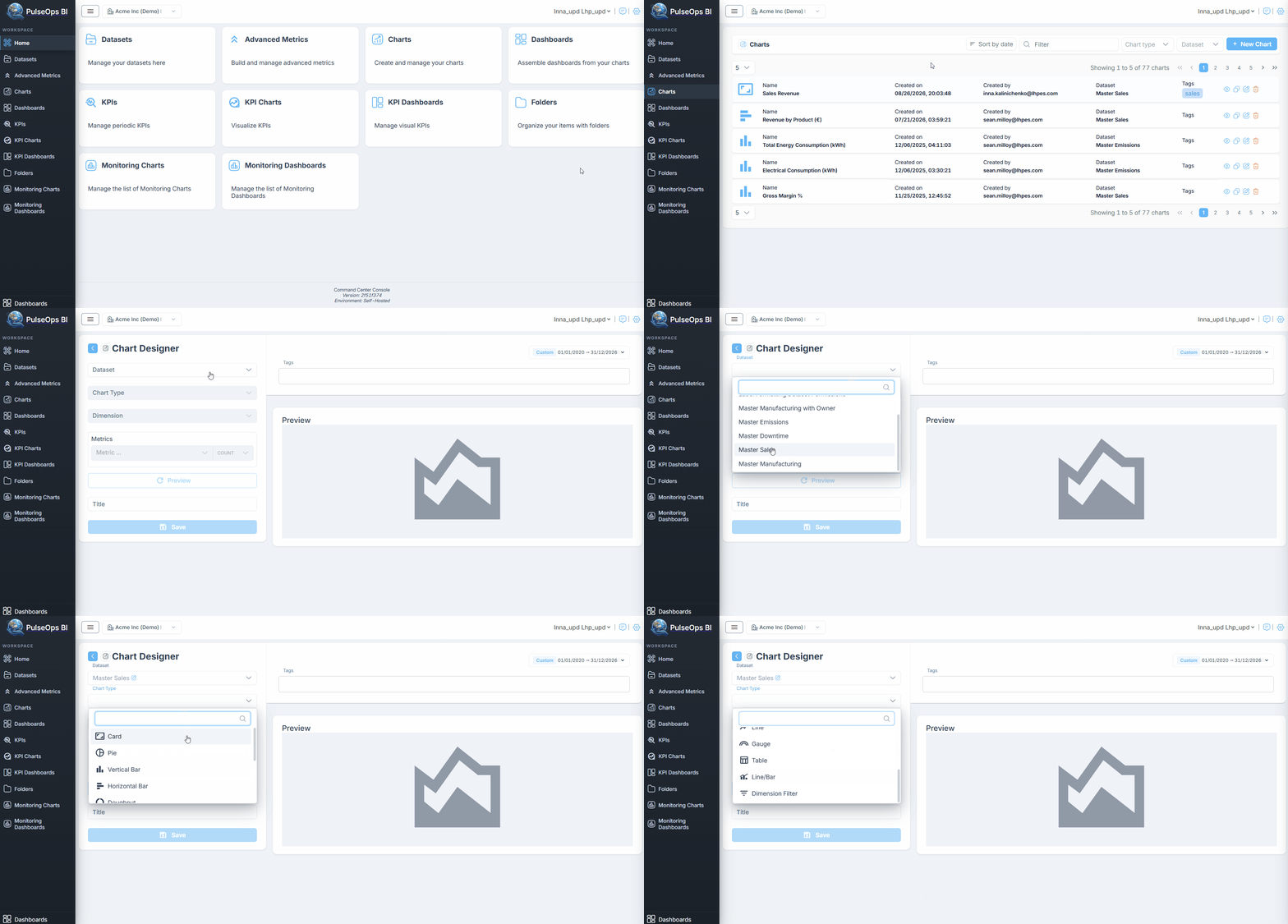
- In Chart type dropdown, choose Horizontal Bar
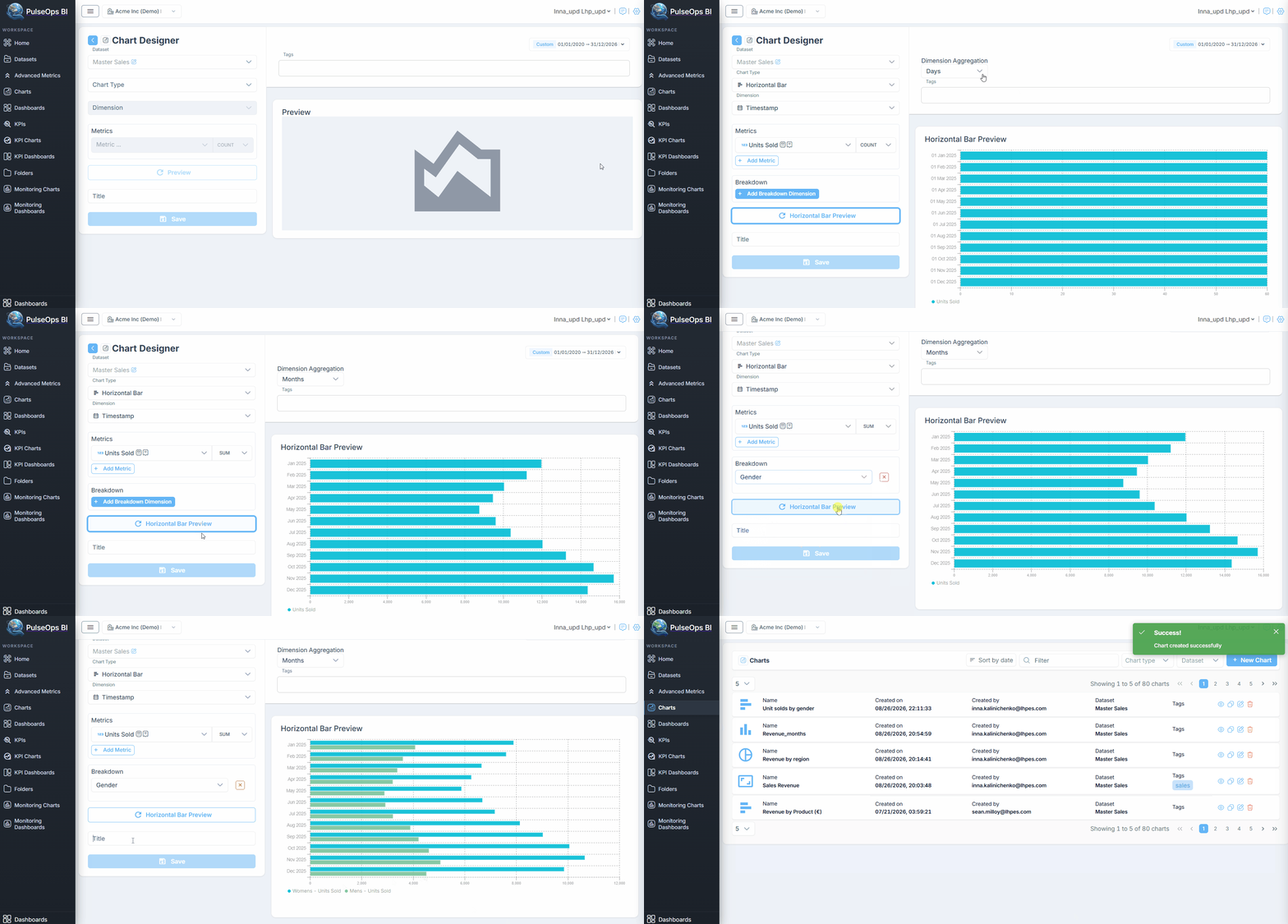
- In Dimension field, choose dimension
- In Metric field, select any metric (to select more than one metric, click on +Add metric button)
- Choose an aggregation for chosen metric
- Change Dimension Aggregation by Days, Weeks, Months, Quarters, Years if needed
- Breakdown Dimension:
Click + Add Breakdown Dimension to breakdown selected metric
Select any metric
Click Horizontal Bar Preview button
In Title field, insert title of Horizontal Bar Chart
In Tags field, enter any tag and press "Enter" button
Click Save button
Created Horizontal Chart is in Charts > Charts Library
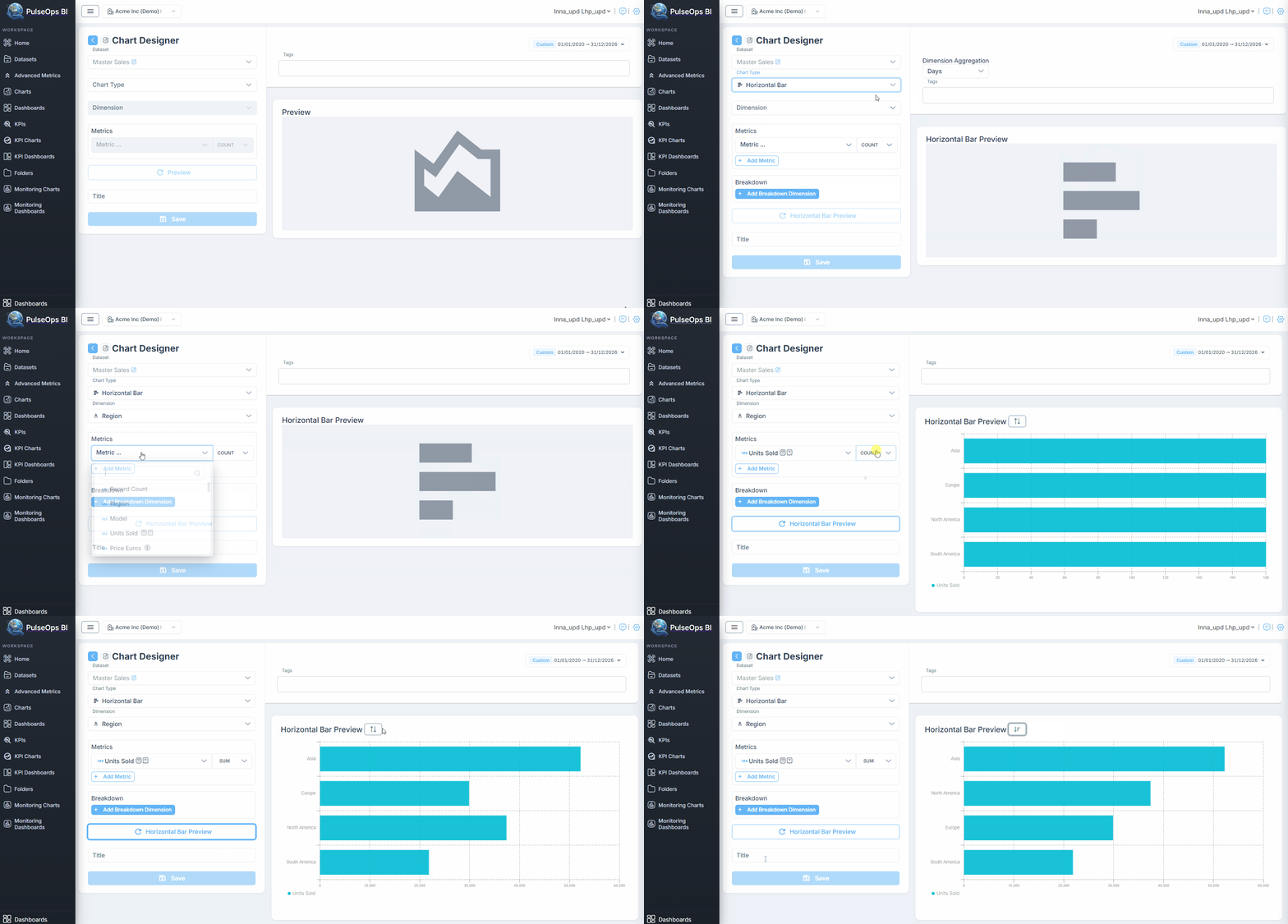
Sort Values
The Command Center allows you to sort the values within the chart, either in ascending or descending order.
In the Dimension field, choose a dimension other than the timestamp
In the Metric field, select a single metric
Next to the Chart Preview title
the Sort button appears
Clicking once will arrange the values in ascending order
Clicking twice will arrange them in descending order