Advanced Metric creation
The PulseOps BI allows you to create your own Metrics, essential for monitoring performance and ensuring that targets are met. This functionality allows you to make data-driven decisions and maintain alignment with your strategic goals.
Creation
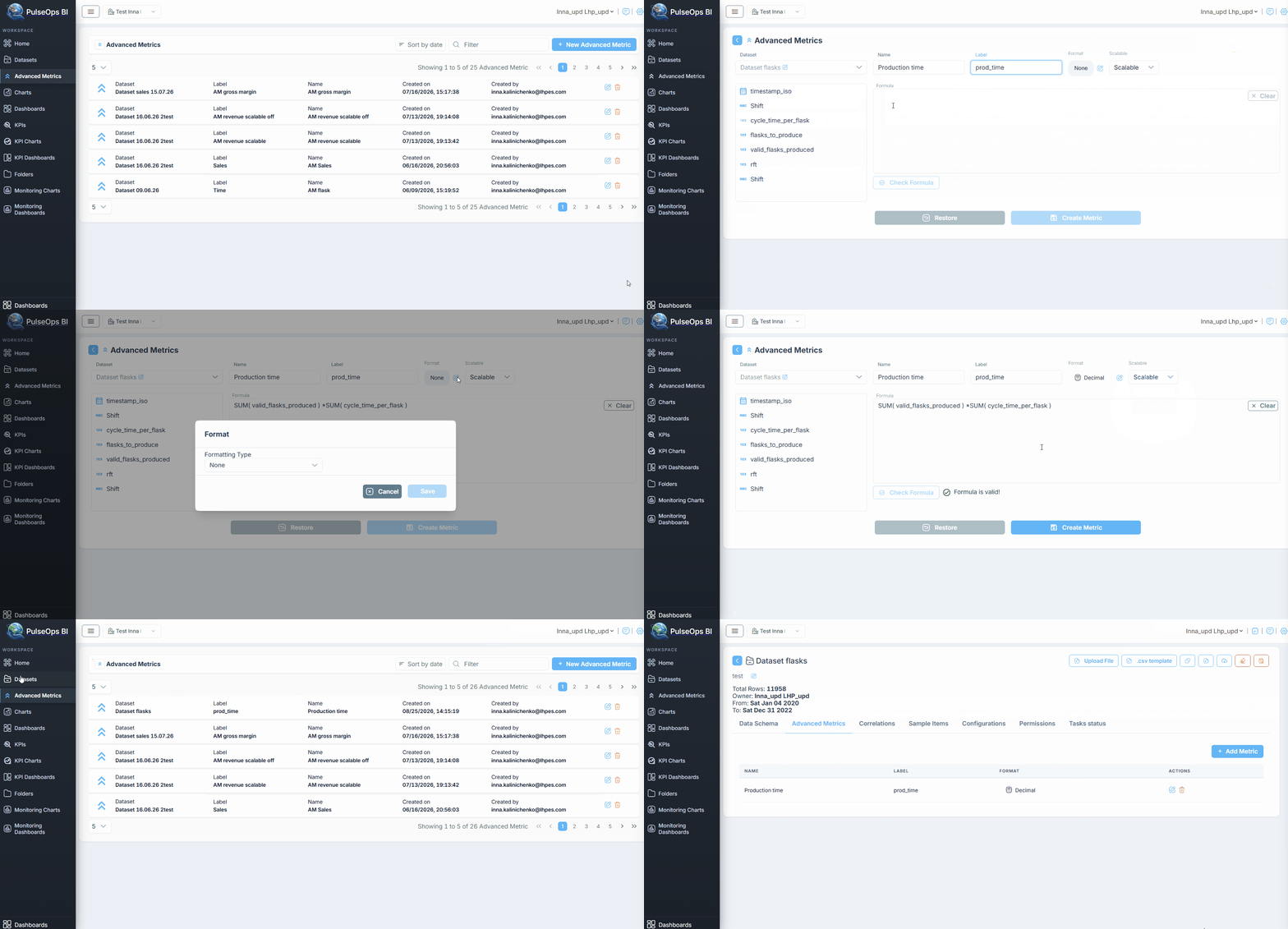
Create the PulseOps BI Advanced Metrics following the steps below:
- Method A:
- Log in PulseOps BI as Admin/SuperAdmin.
- From the Menu bar select Advanced Metrics
- Click on + New Advanced Metric button
- Method B:
Log in PulseOps BI as Admin/SuperAdmin.
From the Menu bar select Datasets
- Click Edit button

Go to Advanced Metric tab
Then:
4. In Dataset field, select the dataset, from those uploaded to the PulseOps BI, for which you want to create the Advanced metric.
5. In Name field, enter the the name of the Advanced Metric
6. In Label field , enter the the label of the new metric
7. In Format field, select the format of the new metric, selecting the relative Decimal/Percent/Currency/ or None 8. In Scalable dropdown select Scalable/Not Scalable value
Formula definition
To create a valid formula, every field MUST have an aggregation function applied. Create the PulseOps BI Advanced Metric following the steps below:
- In the Formula field, enter the desired formula for the Advanced Metric.
- Select the necessary variables from the Fields section by clicking on the desired field from the list of available options.
- Click the Check Formula button to ensure the formula is correct.
- If the formula is valid, a
Formula is valid!message will appear. - Click on Create metric button to save the new metric.
- The Advanced metric is successfully created and is in Advanced Metric list.