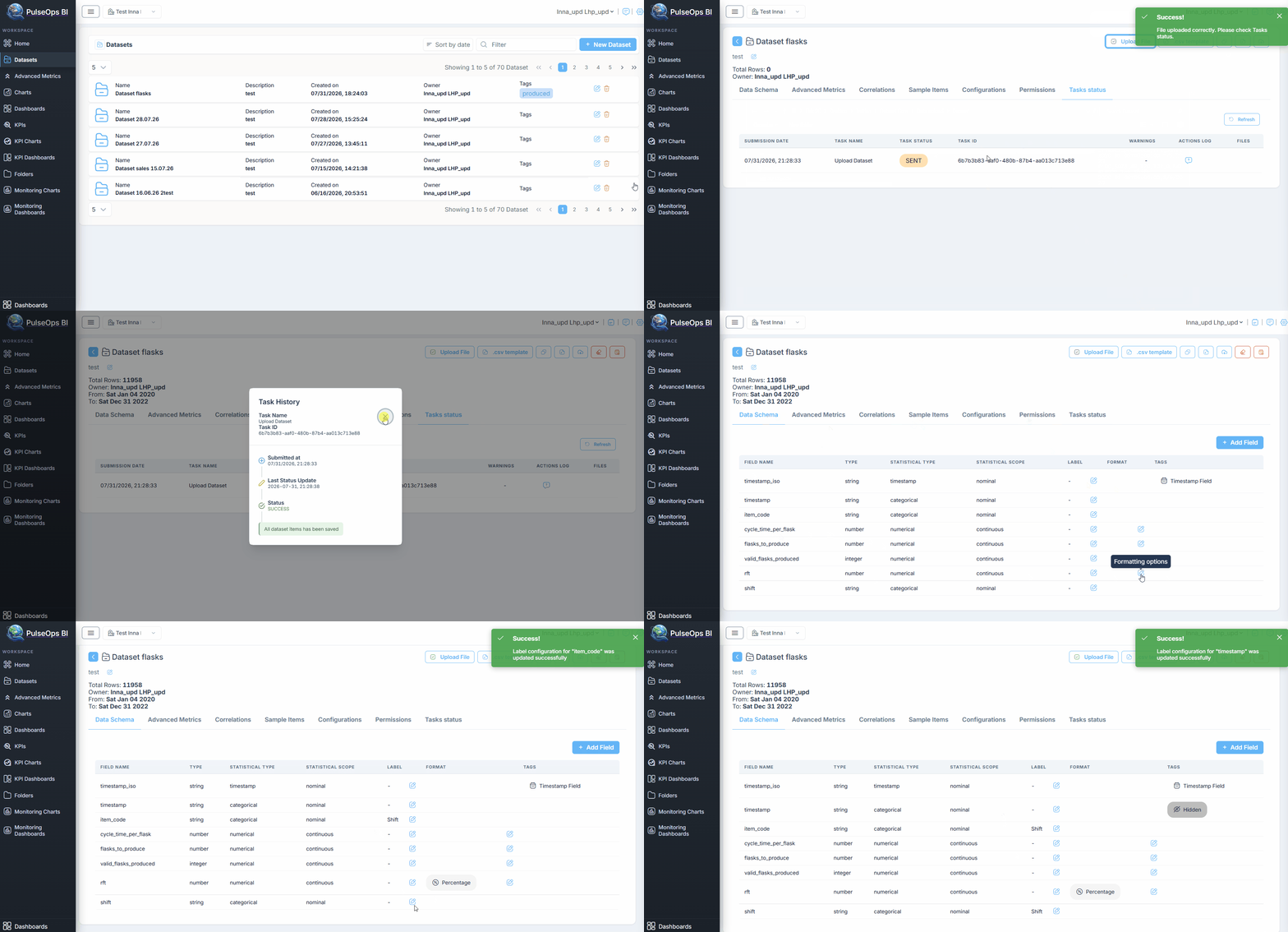
Upload Data in Dataset
To upload the csv file of the dataset, proceed with the following steps:
Log in to PulseOps BI as Admin/SuperAdmin.
From the Menu bar select Datasets
- Click Edit button

Click on Upload File button
Select dataset file in .csv format
Go to Task Status tab to verify Success status
Click Refresh button
The Dataset is successfully uploaded
Dataset infos
- PulseOps BI allows you to have a sample of the file just uploaded, simply click on Sample Items.
- Under the dataset title are visible informations regarding the dataset time range and number of total rows.
Formatting configuration
The PulseOps BI allows you to modify the format of the variables within your dataset retrospectively. It is possible to set the variable as currency (choosing the relevant reference currency), percentage, and decimal (to which you can add a postfix as desired).
Go to the Data Schema tab
In the Format column
click Formatting options buttonrelated to the variable of interestIn the Formatting Type field, select the format of the chosen metric, choosing the relevant postfix/currency.
In the Number formatting options section, select the number of integer and decimal digits.
Click Save to save.
Hidden variables
The PulseOps BI allows you to hide fields that you don't want to use, making them not available for chart configuration.
Go to the Data Schema tab
In the Label column
click Edit label buttonrelated to the variable of interestIn the Edit label field enter the label with which the filed will be displayed within the PulseOps BI
Select the box 'Hide field'
Click Save to save
Now the field is hidden
Guide