Advanced Metric managment
Manage Advanced Metrics in the PulseOps BI following the steps below:
- Log in PulseOps BI as Admin/SuperAdmin.
- From the Menu bar select Advanced Metrics
Advanced Metric Update
- Click Edit button

- Advanced Metrics page opens
- Apply the desidered changes
- Click on the Update Advanced Metric
- The Advanced Metrics is successfully updated and is in Advanced Metrics list
Advanced Metric deletion
- Click on the Delete button.
- A confirmation message will appear, click on YES.
- The Advanced Metric has been successfully deleted.
Advanced Metric usage
The advanced metrics previously created, can be used just like any other standard metric for building charts. Once defined, they can be included in dashboards, reports, or analyses and visualized through charts or tables. This allows you to visually represent customized information and further deepen the analysis.
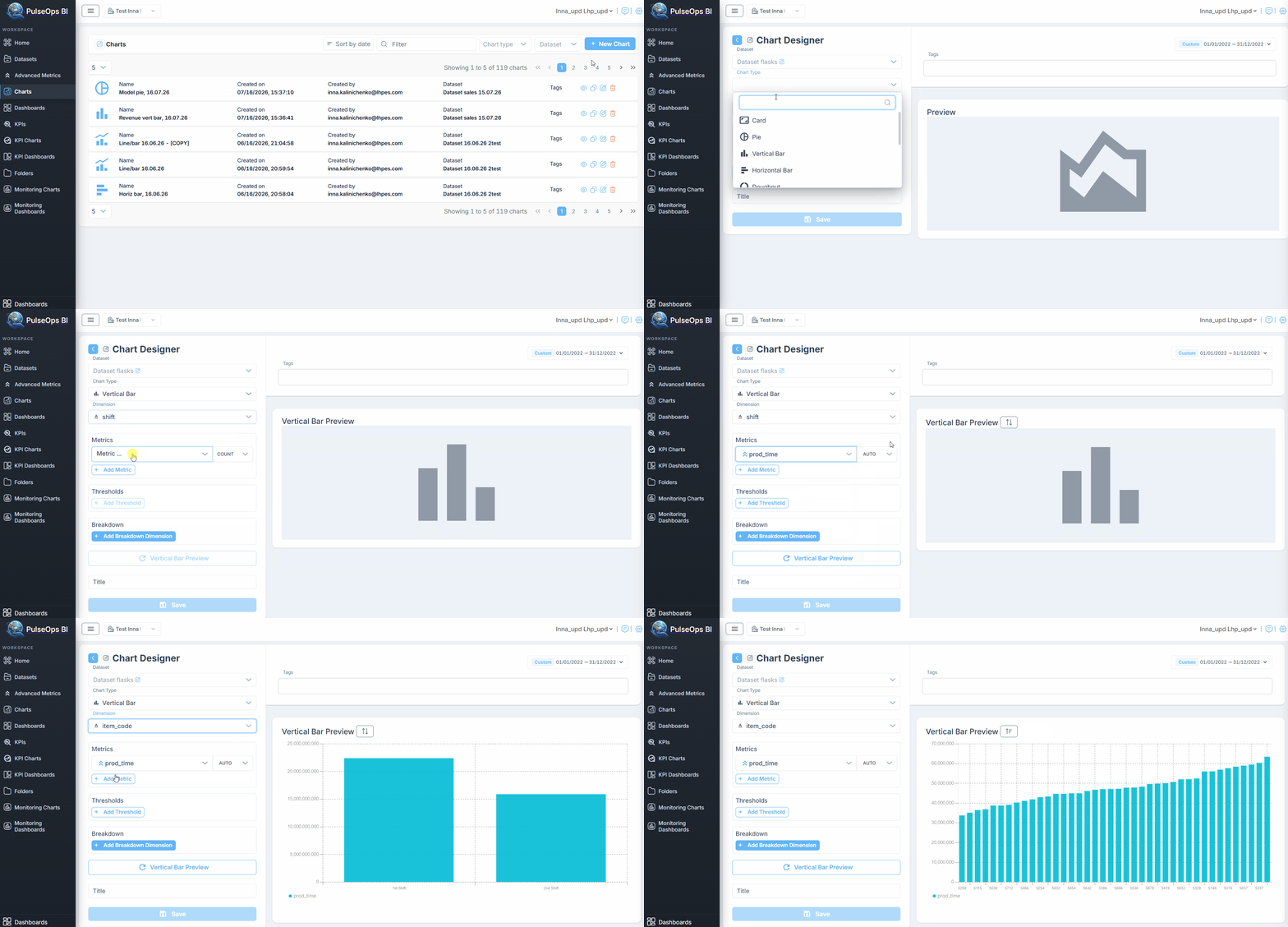
Create charts usgin Advanced Metrics following the steps below:
Log in PulseOps BI as Admin/SuperAdmin.
From the Menu bar select Charts
Click on + New Chart button
In Datasets dropdown, select the dataset used to create the Advanced Metric
In Chart type dropdown, choose the desired chart
In Metric dropdown select the advanced metric,
recognizable by the symbol
The aggregation for chosen metric would be Auto
In Tags field, enter any tag and press "Enter" button
In Title field, insert title of the charts
Click Save button
Created Advanced Metric chart is in Charts > Charts Library