Create a Dataset
A dataset is an organized collection of data, typically presented in a tabular format. In this format, each column represents a specific variable, and each row corresponds to an individual member of the dataset. These members could be objects, individuals, events, or any entities under consideration, depending on the context.
Your data should be present in two formats of the Dataset:
- json format (Data Schema definition)
- csv format (Dataset file)
CSV file characteristics
So that the correct creation of the dataset can occur, the PulseOps BI requires some adjustments regarding the CSV file.
- The CSV file must have an header
- The fieldname defined in the header should be the same of the one defined in the dataset
- All the field defined in the dataset should be defined in the CSV file
- The csv file could contain extra-fields, with respect to the ones defined in the Data Schema, that will be ignored during the upload
- Must be followed the fieldname validation rules defined in Define properties> 2.1 Validation Rules
[INFO] To facilitate the creation of the dataset, the PulseOps BI provides you with the opportunity to download a template file with the header in the format expected by the Data Schema. This allows you to verify that the field names in both formats match.
Dataset creation
Create the PulseOps BI dataset following the steps below:
- Log in to PulseOps BI Console as Admin/SuperAdmin.
- From the Menu bar select Datasets
- Click on + New Dataset button
- In Dataset Name field, enter the name of the dataset
- In Dataset Description field, enter the description of the dataset
- In Tags field, enter any tag and click "Enter"
Choose creation method
Dataset can be created either in:
- Data tab – create dataset manually
- JSON tab – paste dataset structure in JSON format
Then continue with the steps below:
Creation in Data tab
- In Data tab click + Add a Field button
- In Field Name field, enter field name
- In Label field, enter label name
- In Property Type dropdown, select string, integer, number, or boolean type
- In CCDef Type dropdown, select numerical, categorical, or timestamp type
- In CCDef Scope dropdown, select discrete or continuous
- Click Hide Field checkbox if you prefer to hide a field
- Click Save button
- Click Edit button
- In CCDef Type dropdown, select timestamp type
- Select Reference Timestamp checkbox to check field as Reference Timestamp
- Click Save button
- The Dataset is successfully created and is in Datasets list
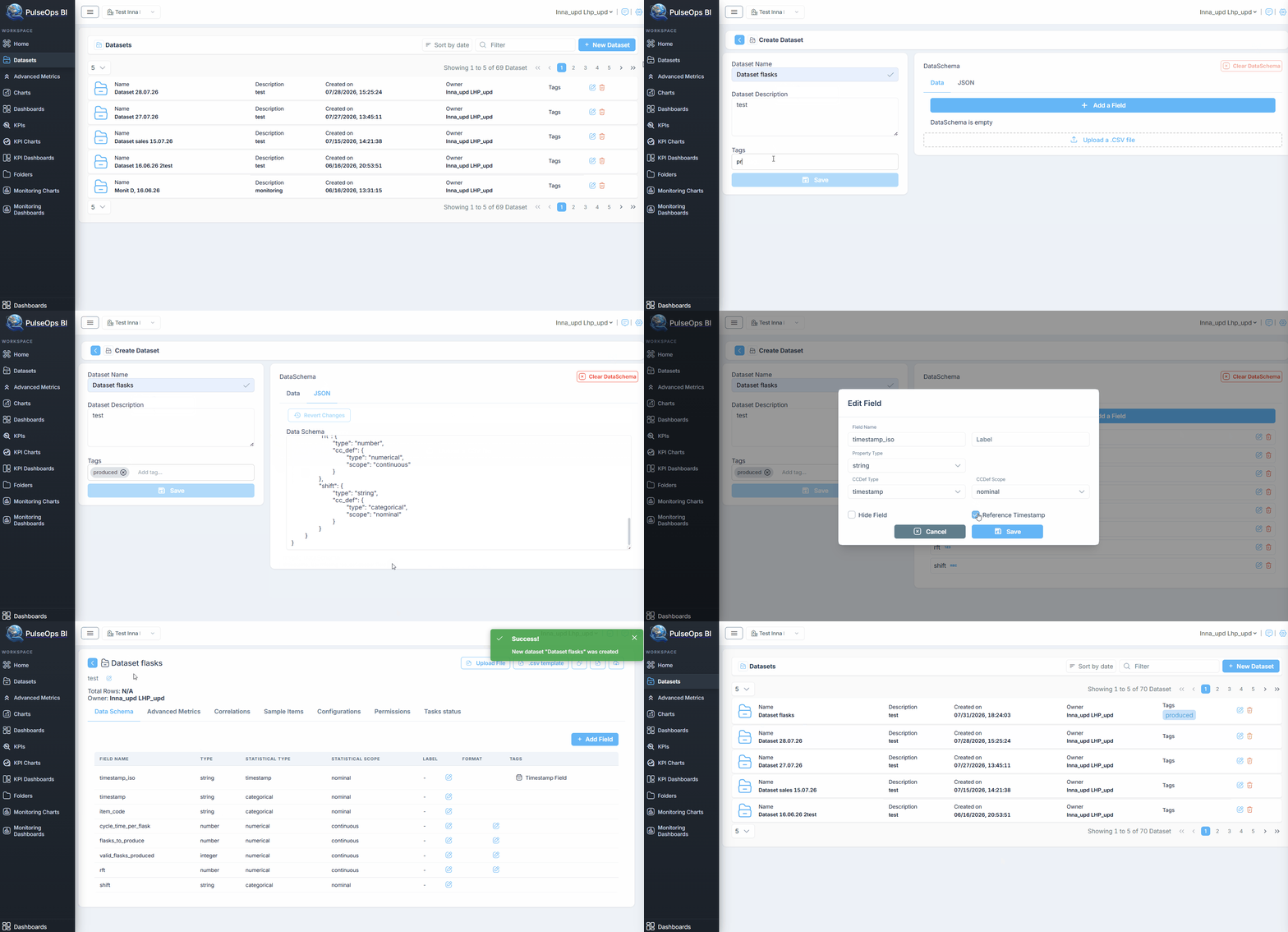
Creation in JSON tab
- In Dataset Schema field, paste dataset in .json format
- Click Fix if 'cc_def.scope' field is missing
- In Data tab select field as reference timestamp
- Click Edit button on this field
- Select Reference Timestamp checkbox
- Click Save button
- The Dataset is successfully created and is in Datasets list
Guide
Creation in Data tab 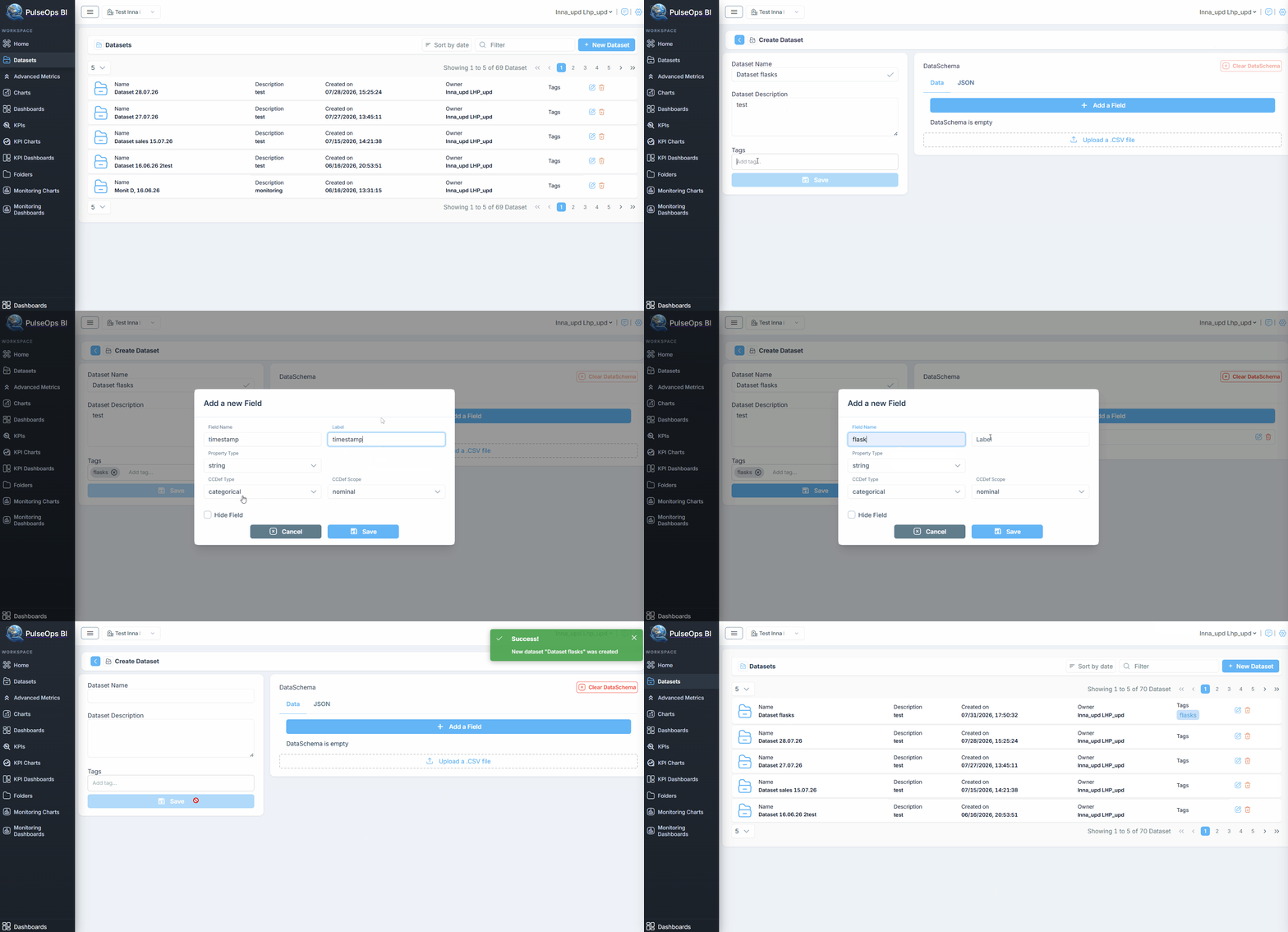
Creation in JSON tab