KPI charts
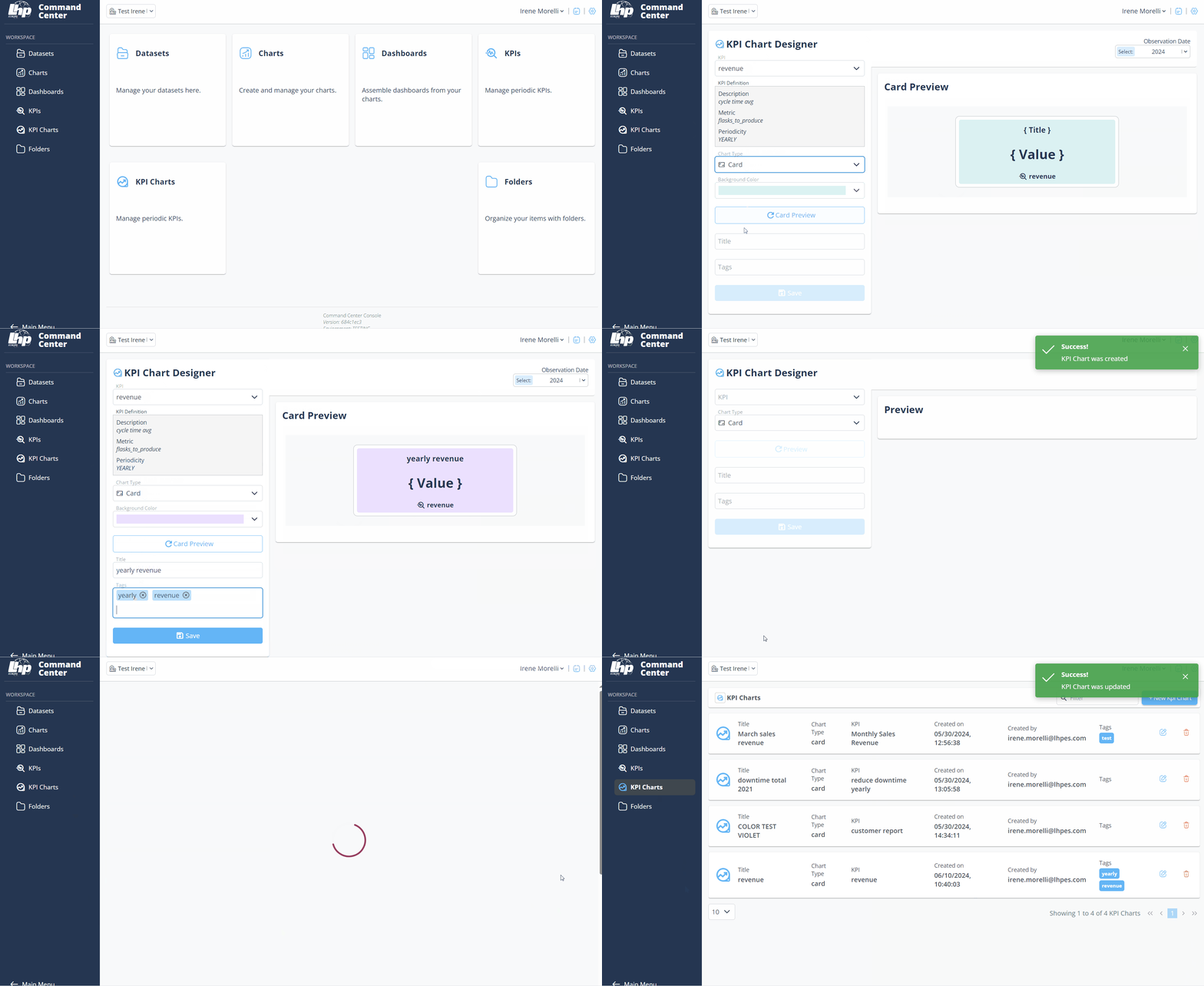
Create charts for your KPIs in the Command Center following the steps below:
- Log in Command Center Console as Admin/SuperAdmin.
- From the Menu bar select KPI charts
- Click on + New KPI chart button
- In KPI field, select the KPI of interest
- In Chart type dropdown, choose a type
- In Periods displayed choose the number of periods ( days/months/years) to be displayd in the vertical bar charts
- Click Preview button
- In Title field, insert title of the the KPI chart
- In Tags field, enter any tag and press "Enter" button
- Click Save button
- Created chart is in KPI Charts > KPI Charts Library
Additional feautures
- Conditional formatting: Option valid if a vertical bar chart and a KPI with threshold have been chosen. Click Active button to activate Conditional Formatting function