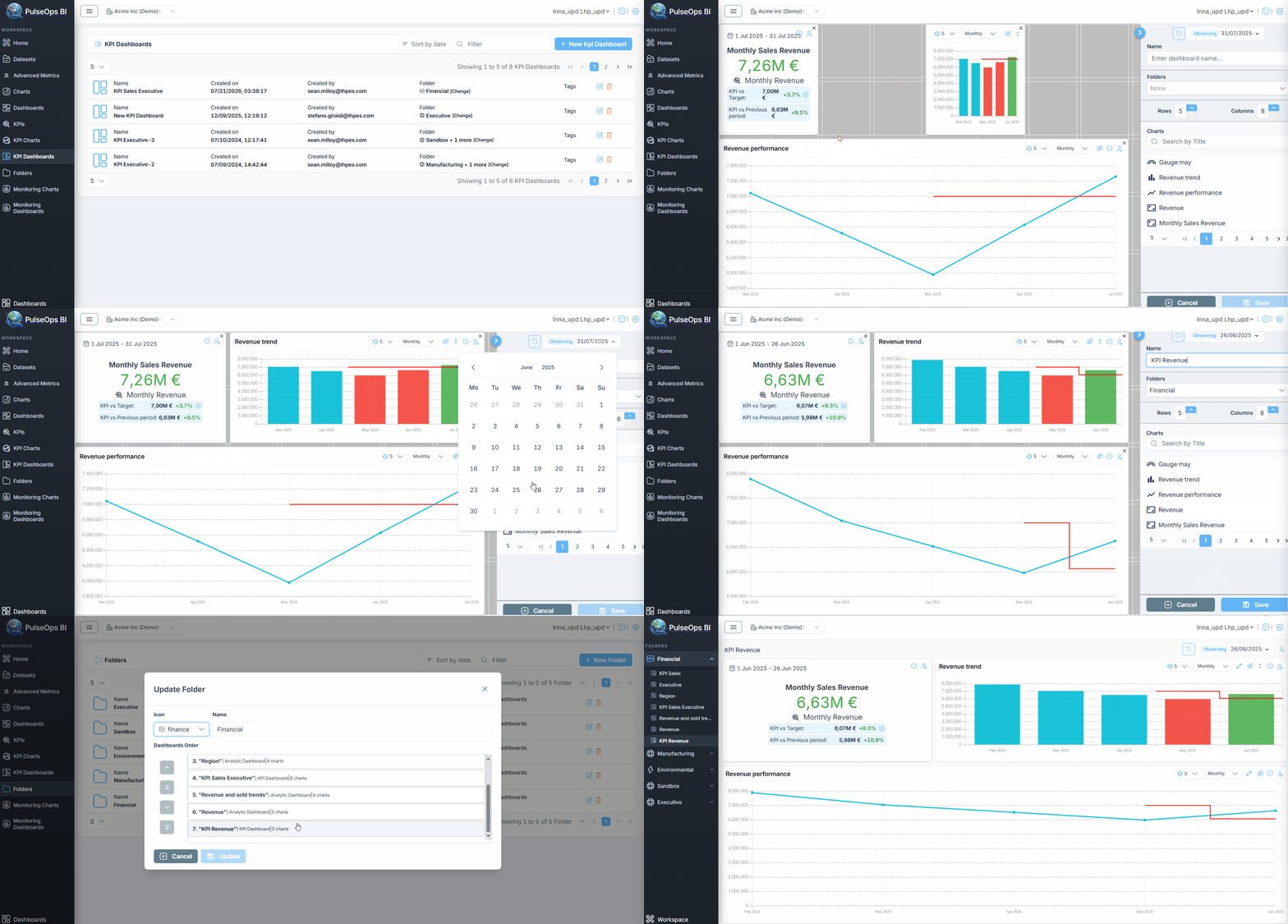
KPI Dashboard Creation
Add your KPIs to a dashboard in PulseOps BI by following these steps:
- Log in to PulseOps BI as an Admin/SuperAdmin
- From the Menu bar, select KPI Dashboards
- Click + New KPI Dashboard
The dashboard creation page opens. The remaining steps are the same as for creating an analytic dashboard:
- In the Charts section, find the previously created KPI charts by entering the chart title in the Search by Title field or by browsing through the pages
- Set the Observing date to specify the period to which the dashboard applies
- To add a chart to the dashboard click the KPI chart in the Charts list
- In the Name field, enter the name of the KPI Dashboard
- From the Folders drop-down menu, choose one or more folders to associate with the dashboard
- Click Save The created dashboard can be found under KPI Dashboards > KPI Dashboards list