KPI Card
Before you begin, verify that the KPI is created
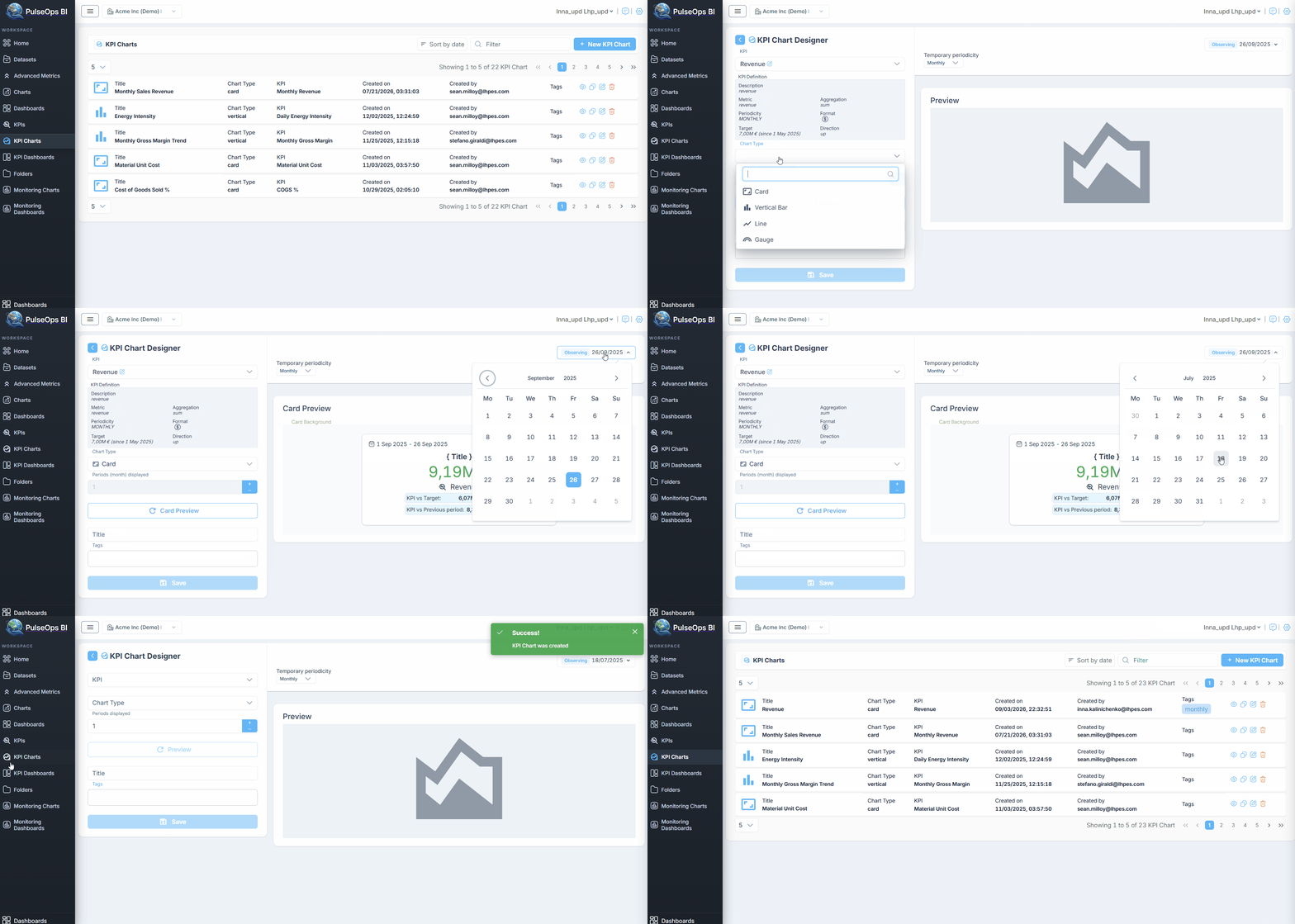
- Log in to PulseOps BI as Admin/SuperAdmin
- From the Menu bar select KPI Charts
- Click + New KPI Chart button
- In KPI field, select the KPI of interest
- In Chart type dropdown, choose Card
- Select periodicity in Temporary periodicity dropdown
- In the Observing field, select the date up to which KPI data should be displayed.
- Click Preview button
- In Title field, insert title of the the KPI chart
- In Tags field, enter any tag and press "Enter" button
- Click Save button
- Created KPI Card is displayed in KPI Charts > KPI Charts list
Note: The selected date determines the end date of the displayed KPI data. Only data available up to and including the selected date is displayed.