Dataset Correlations
The Dataset Correlations feature allows users to define relationships between fields from different datasets. These relationships enable users to connect related data sources and perform data analysis across multiple datasets.
A correlation is created by mapping a field from the current dataset (Base Field) to a corresponding field from another dataset (Related Field).
Create a Dataset Correlation
To create a new correlation:
Open the required dataset
Navigate to the Correlations section
Click Add Correlation
Select the required fields:
- Base Field — field from the current dataset
- Related Dataset — dataset to be linked
- Related Field — field from the related dataset
Save the correlation
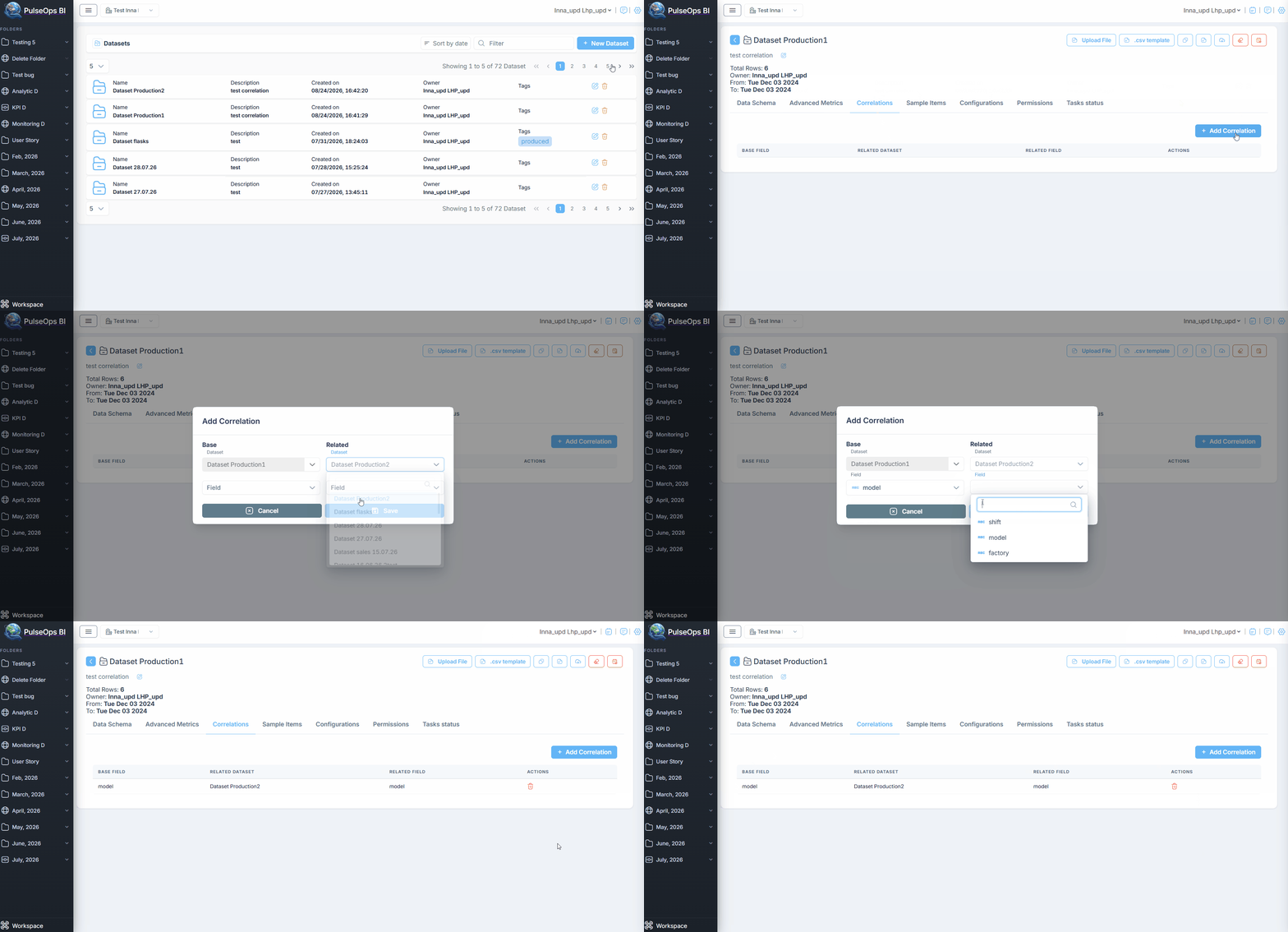
The created correlation is displayed in the correlations list
Correlation List
The correlations table contains the following information:
| Field | Description |
|---|---|
| Base Field | Field selected from the current dataset. |
| Related Dataset | Dataset connected to the current dataset. |
| Related Field | Field used to establish the relationship with the related dataset. |
| Actions | Available actions for managing the correlation. |
Available actions:
- Delete correlation
Dataset Configuration
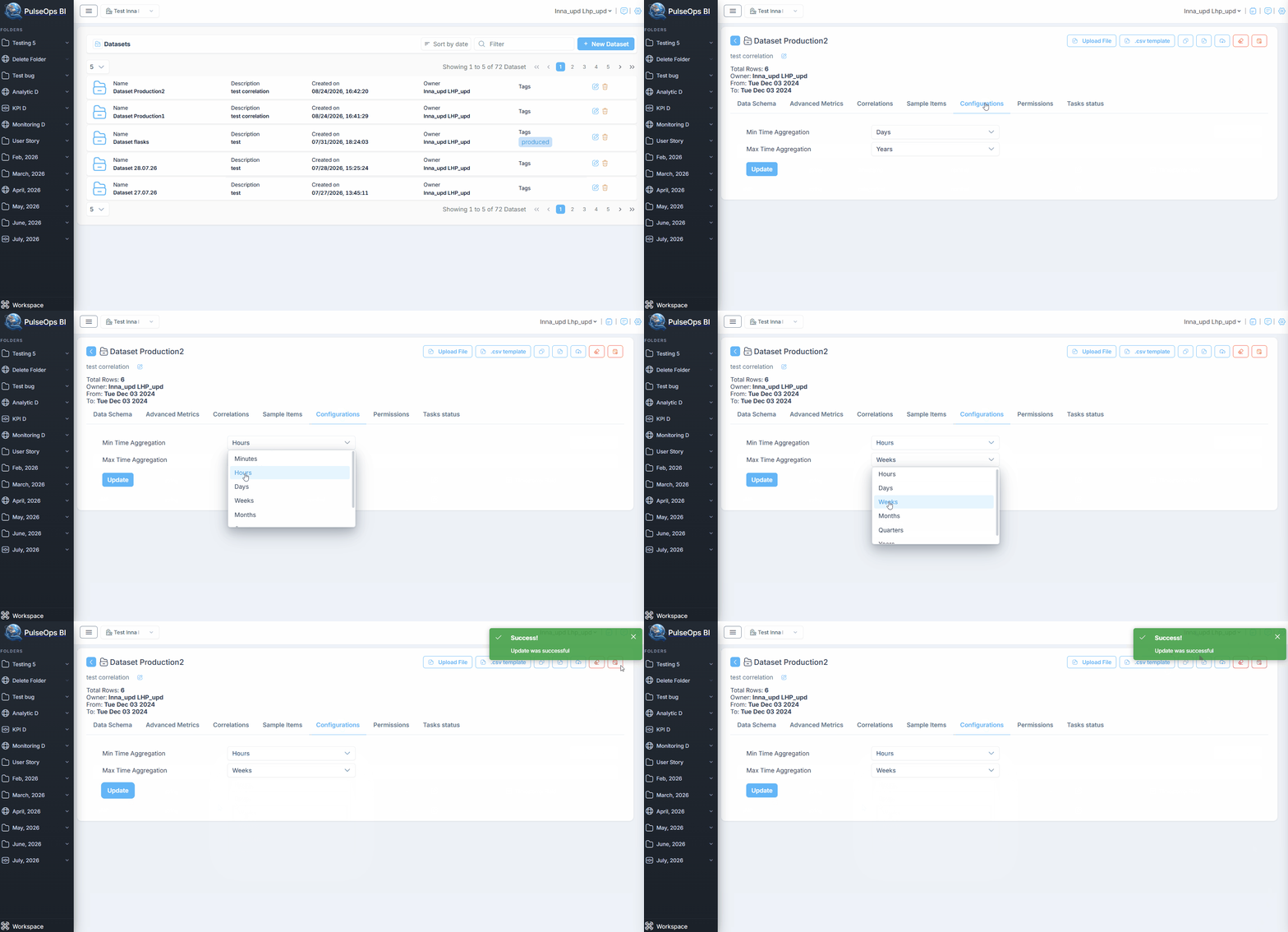
The Dataset Configuration section allows users to define time-related aggregation settings for a dataset.
These parameters control the time range available for data aggregation and analysis.
| Parameter | Description |
|---|---|
| Min Time Aggregation Days | Defines the minimum number of days available for time aggregation. |
| Max Time Aggregation Years | Defines the maximum number of years available for time aggregation. |
Configure Dataset Settings
To update dataset configuration:
- Open the required dataset
- Navigate to the Configuration section
- Update the required parameters
- Save the changes
The updated configuration is applied to the dataset
Dataset Permissions
The Dataset Permissions section allows administrators to manage user and group access to datasets.
Permissions define whether a user or group can view dataset information or modify dataset settings and content.
Permission Types
The following permission types are available:
- User Permission — grants access to an individual user
- Group Permission — grants access to a group of users
Add User Permission
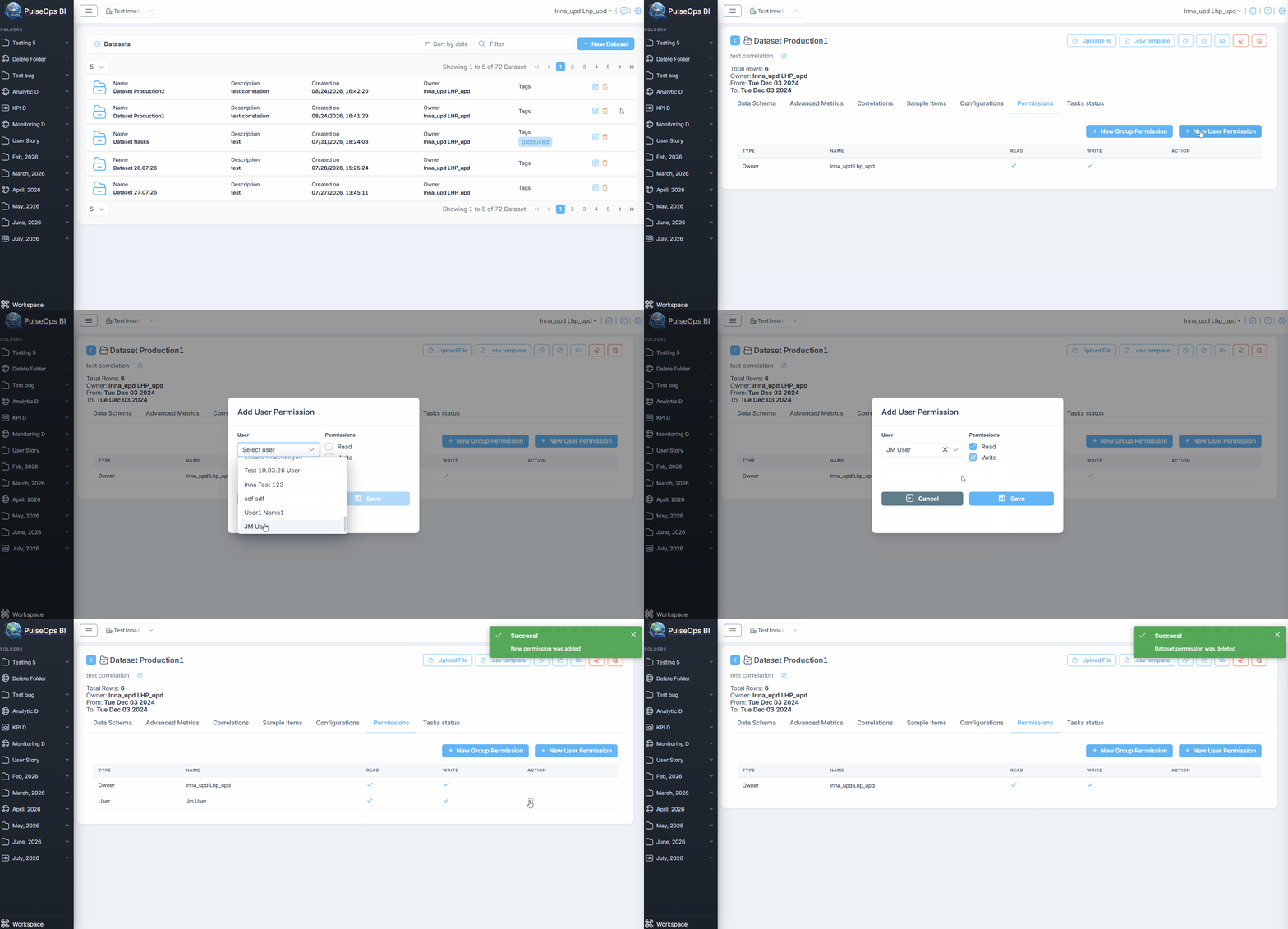
To add a user permission:
Open the required dataset
Navigate to the Permissions section
Click New User Permission
Select a user
Define access rights:
- Read — allows viewing dataset information
- Write — allows modifying dataset information
Save the changes
Add Group Permission
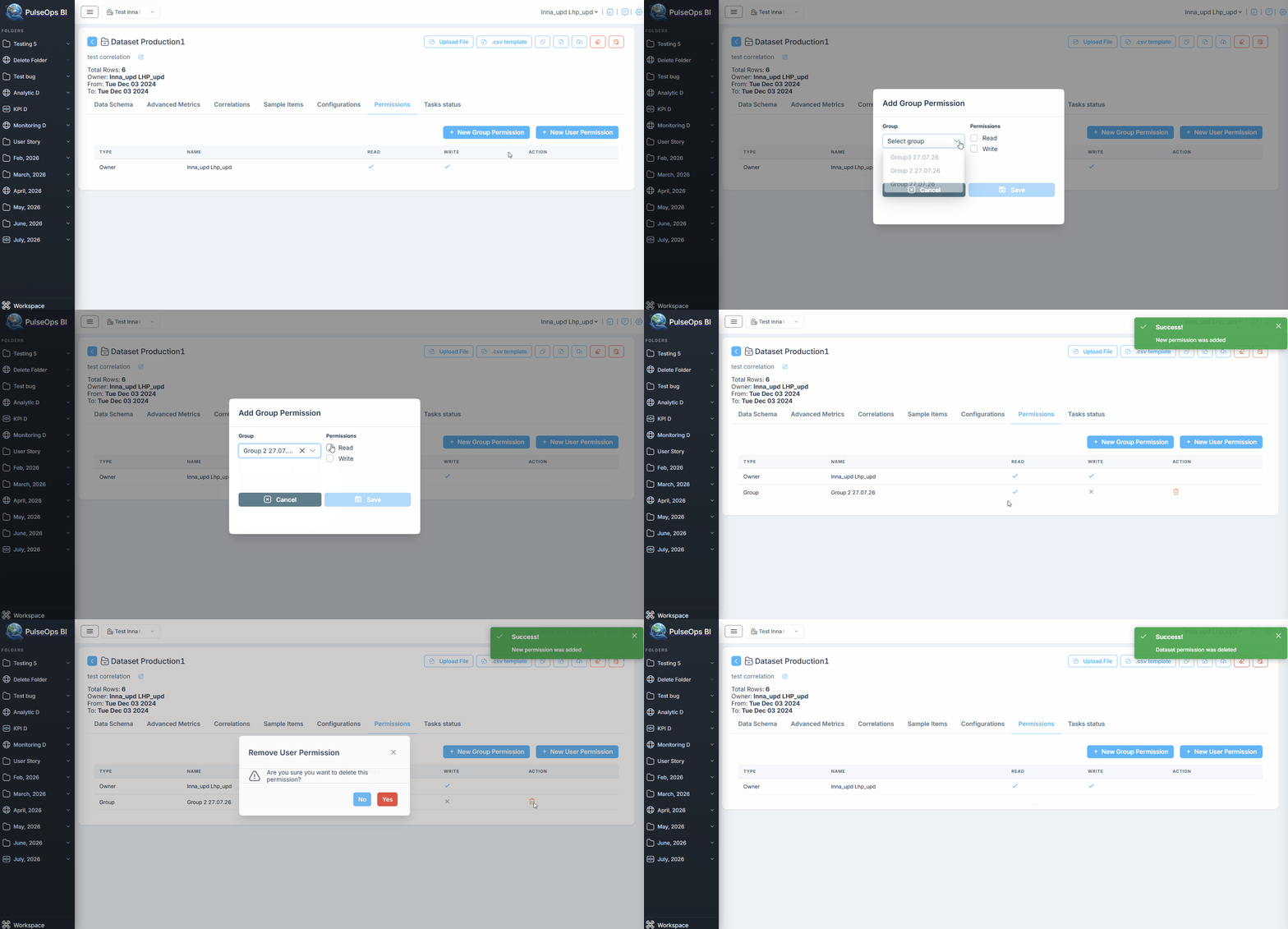
To add a group permission:
Open the required dataset
Navigate to the Permissions section
Click New Group Permission
Select a group
Define access rights:
- Read — allows viewing dataset information
- Write — allows modifying dataset information
Save the changes
Permissions Table
The permissions table contains the following information:
| Field | Description |
|---|---|
| Type | Defines whether the permission is assigned to a user or a group |
| Name | Name of the user or group |
| Read | Allows viewing dataset information |
| Write | Allows modifying dataset information |
Manage Permissions
Available actions:
- Remove existing permissions