Create KPI Charts
Select a chart type to learn how to create a KPI chart:
KPI Chart Library
All created KPI Charts are conveniently stored in the KPI Charts library. The library allows users to Preview, Copy, Edit, or Delete existing charts. Users can also search for charts by name and filter them to quickly find the required chart.
Preview a KPI Chart
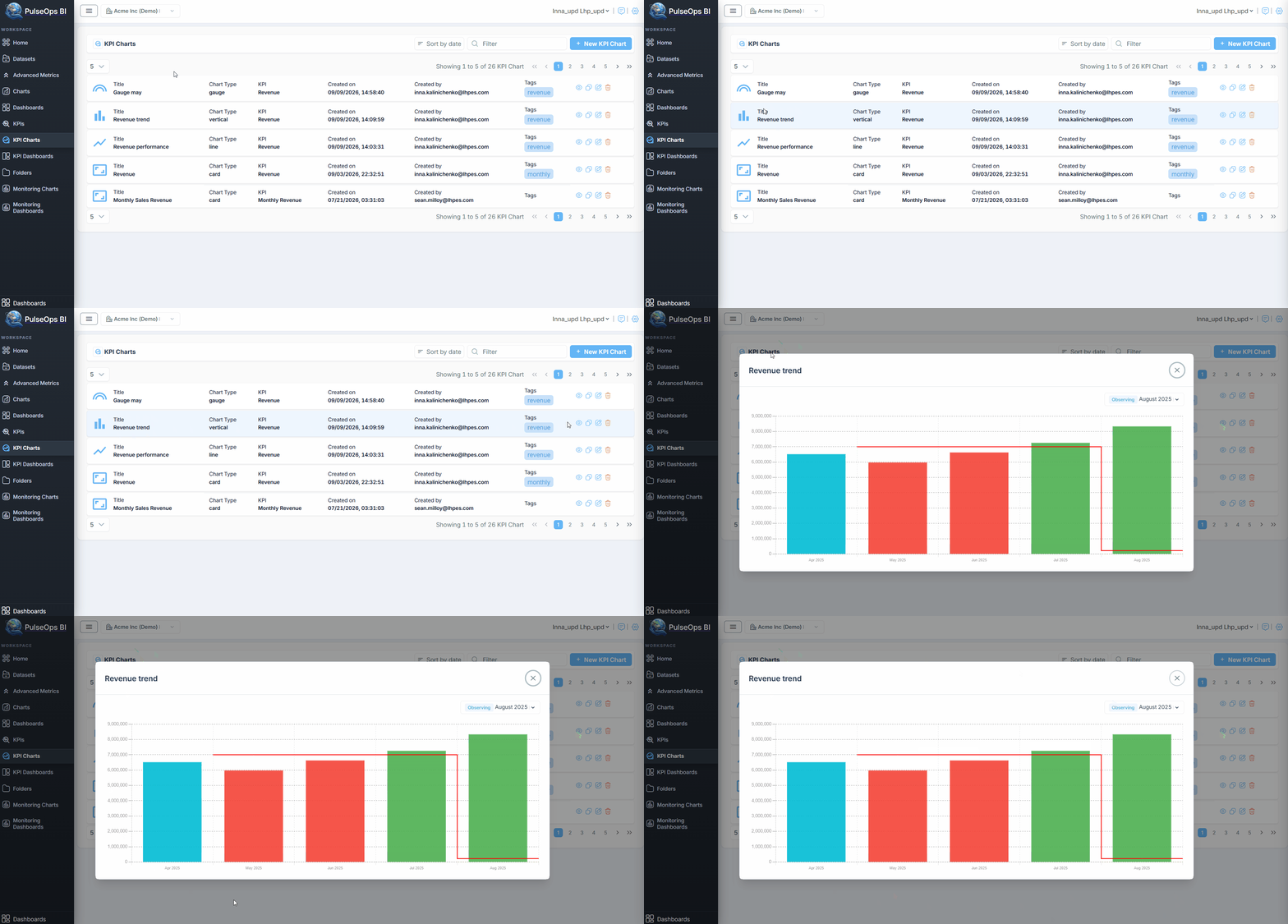
To preview a KPI Chart from the Library:
- In the KPI Charts library, click the Preview icon (eye icon) for the required chart.
- A preview window opens and displays the chart with its Observing date. The Observing date defines the period for which the KPI data is displayed.
Copy a KPI Chart
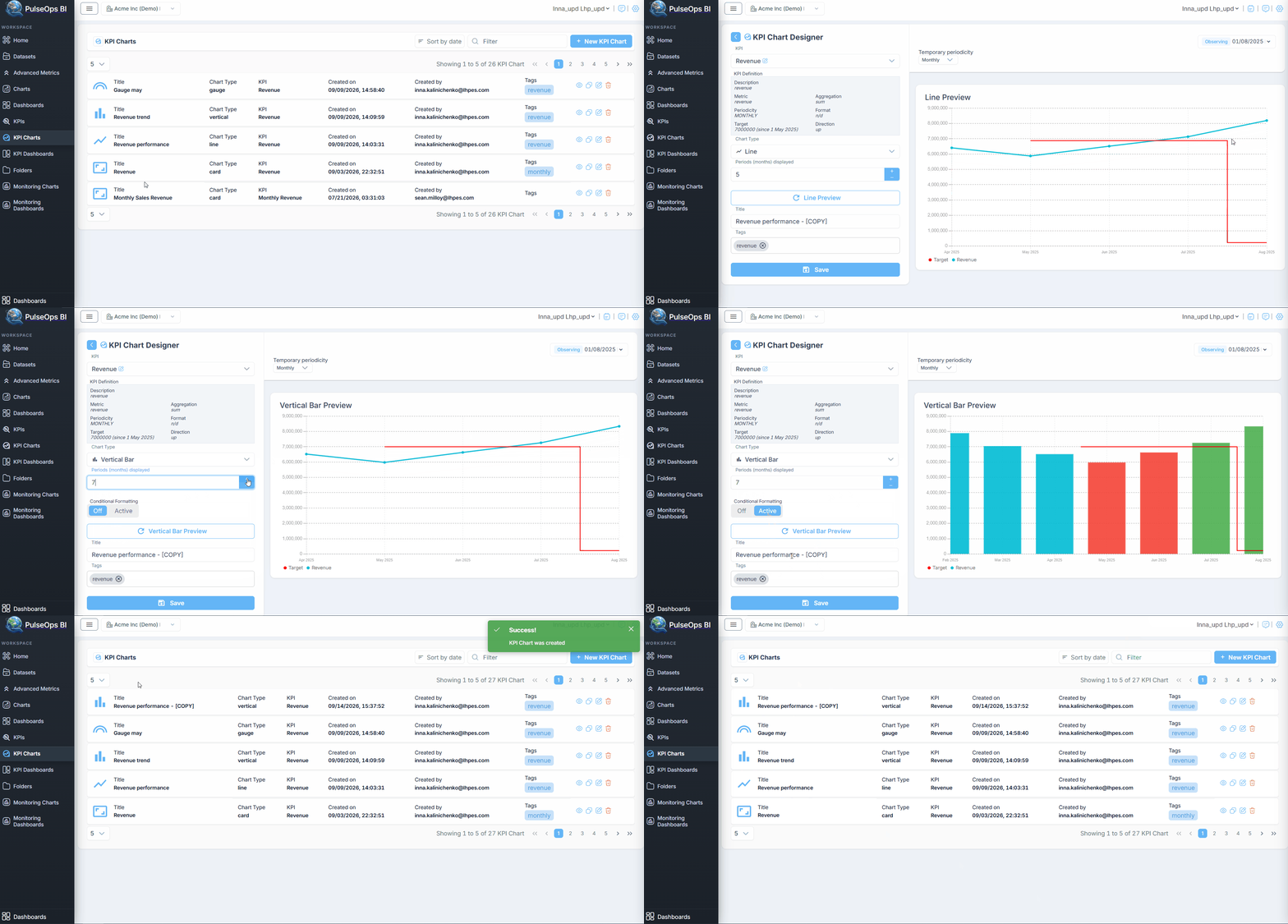
Users can create a copy of an existing KPI Chart while keeping all its current settings.
- In the KPI Charts library, click the Copy icon.
- A new chart opens with the same settings as the original chart.
- The title is automatically updated by adding [COPY] to the original title.
For example: Revenue perfomance → Revenue performance - [COPY] You can modify the copied chart settings and save it as a new KPI Chart.
Edit and Delete a KPI Chart
The Edit and Delete options are available directly from the KPI Charts library.
- Click the Edit icon to modify an existing KPI Chart.
- Click the Delete icon to remove a KPI Chart from the library.